No AWS keys left lying on your Mac.
AWS CLI ZSP (Zero Standing Permissions) takes the plaintext keys out of ~/.aws, seals them with the Mac’s Secure Enclave, and asks for Touch ID before one is used. The AWS CLI then gets a session that ends on its own after an hour. Nothing on the Mac holds access that works all the time, and the AWS CLI keeps working exactly as before.
- Installinstall
- First setupsetup
- Touch ID and sessionstouch-id
- Keyskeys
- Audit trailaudit
- Health checkschecks
- Command linecli
- What it protects againstlimits
- Uninstalluninstall
- Questionsfaq
- Problemsproblems
The problem it fixes.
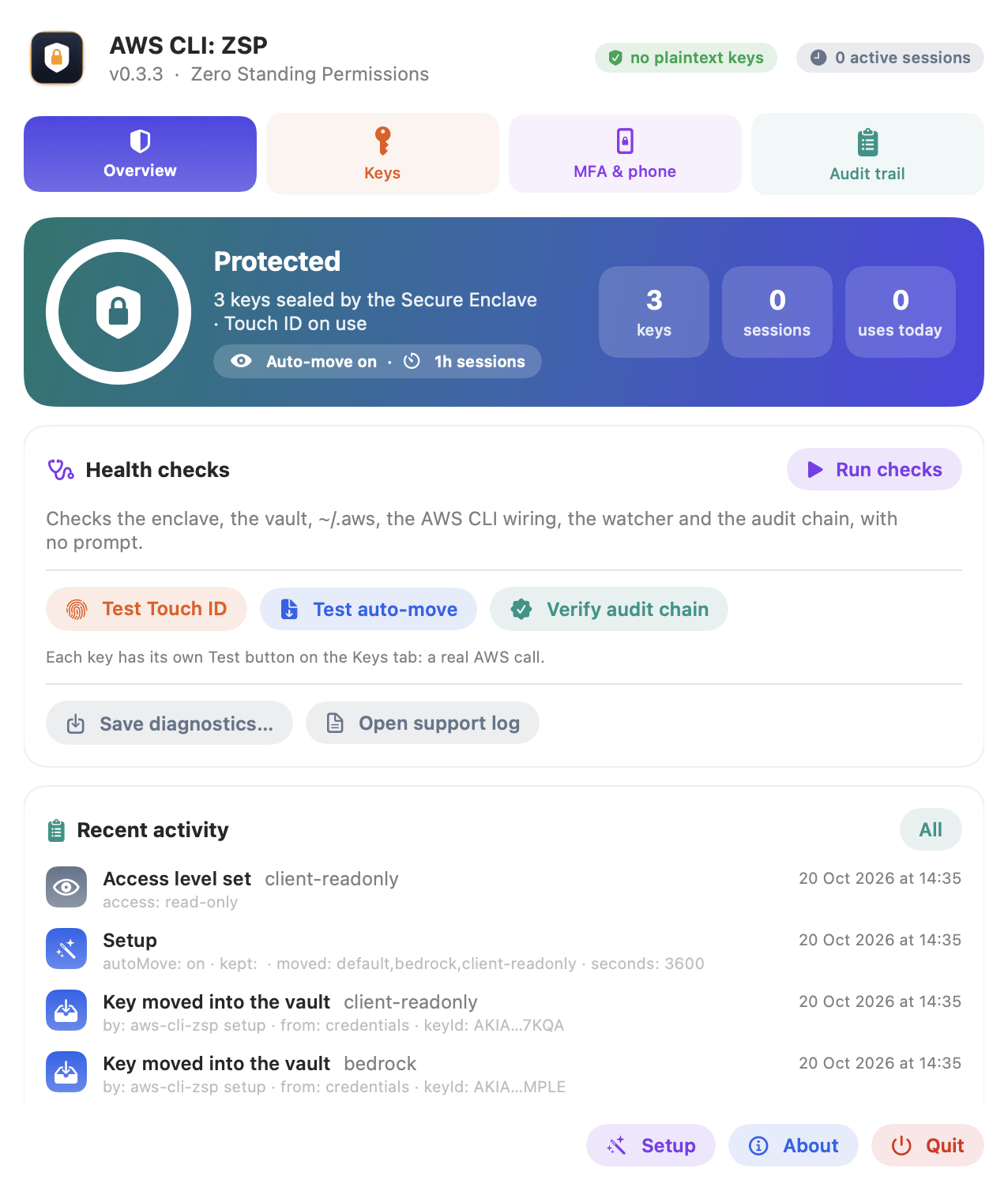
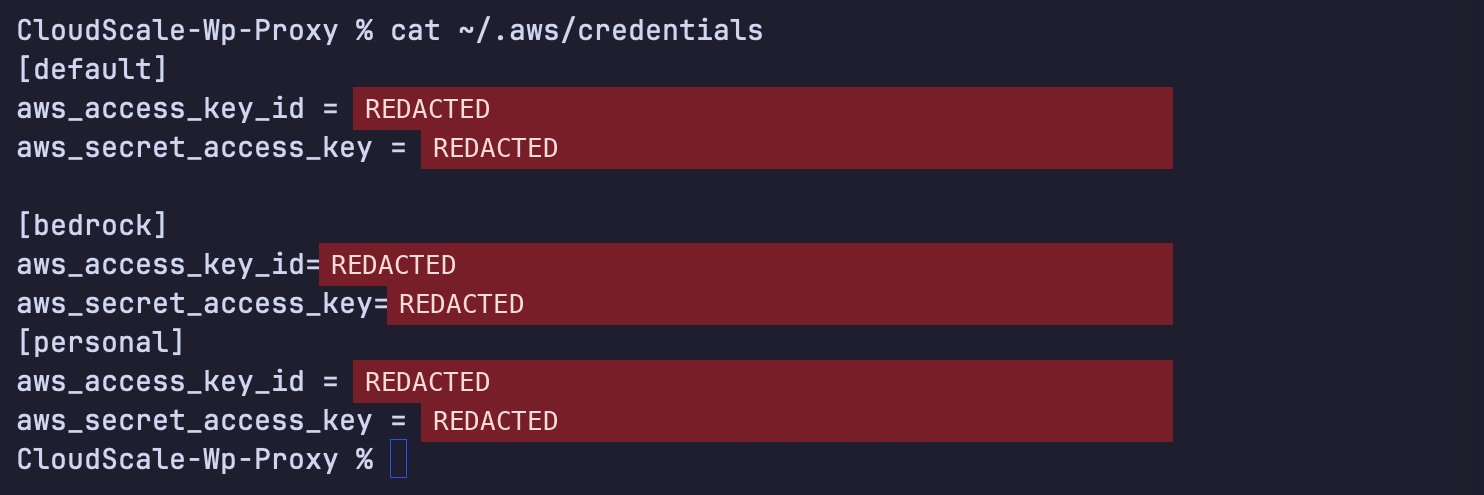
On most developers’ Macs, cat ~/.aws/credentials prints every AWS key in plain text. Each one works from any machine, never expires, and belongs to whoever copies it: a bad npm package, an editor extension, an AI agent, a backup that ends up in the wrong place. Nothing asks first and nothing tells you afterwards.
No readable key on disk
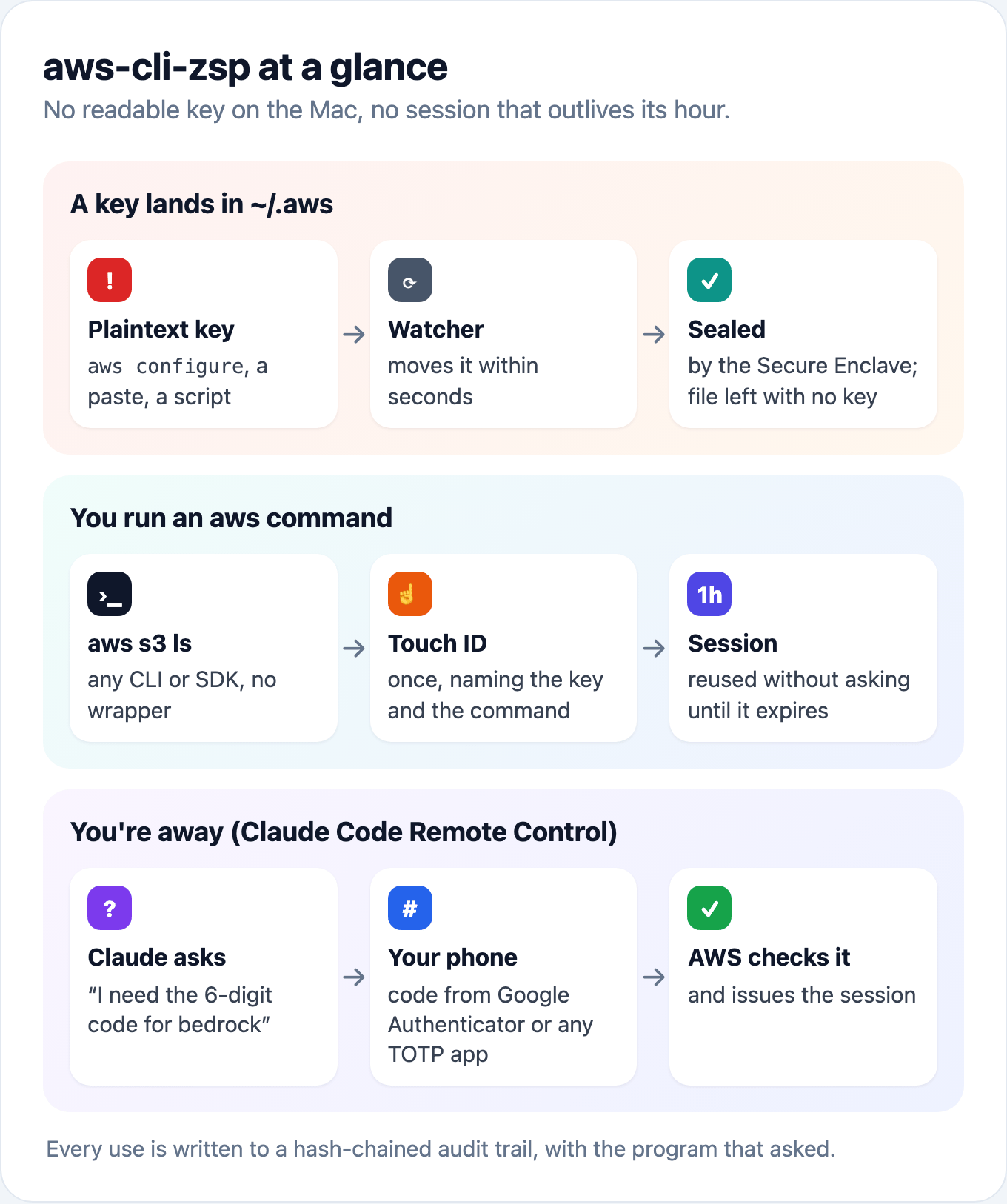
Each access key is sealed by the Mac’s Secure Enclave. The chip will not unseal it without Touch ID, whichever program asks, and the sealed files are useless on any other Mac.
Sessions, not keys
The AWS CLI never sees the long lived key. It gets an AWS session that lasts an hour by default, and one Touch ID covers the whole hour.
Keys cannot creep back
Anything that writes a key to ~/.aws (aws configure, a paste, an installer script) is noticed, and the key is moved into the vault within seconds.
Everything is recorded
Every session, use and refusal goes into a tamper evident audit trail, with the program that asked: "aws s3 ls ← zsh", not just "a key was used".
No wrapper to remember
Plain aws, Terraform, boto3 and every other AWS SDK keep working as before. aws-cli-zsp plugs in through the standard credential_process setting.
Built from source, in one go.
You need macOS 14 Sonoma or later, a Mac with a Secure Enclave (any Apple silicon Mac, or an Intel Mac with a T2 chip), the AWS CLI version 2, and Apple’s command line tools (run xcode-select --install once if you do not have them).
- 1Open Terminal: press Cmd Space, type Terminal, press Return.
- 2Paste these lines and press Return:
git clone https://github.com/andrewbakercloudscale/aws-cli-zsp.git
cd aws-cli-zsp
bash scripts/build-app.sh --install
- 3It runs the tests, builds and signs the app, copies it to ~/Applications, and starts the menu bar app. A shield appears in the menu bar, and Setup opens by itself.
Nothing in ~/.aws changes until you say so in Setup. The install also links the aws-cli-zsp command into ~/.local/bin, starts a small background watcher that looks at the AWS files whenever they change and every 5 minutes, and opens the menu bar app at login.
To build without installing anything, leave off --install. Upgrading from 0.1.x, which stored keys in the Keychain? Run aws-cli-zsp migrate once; macOS asks for your login password once per key.
Pick the keys to protect.
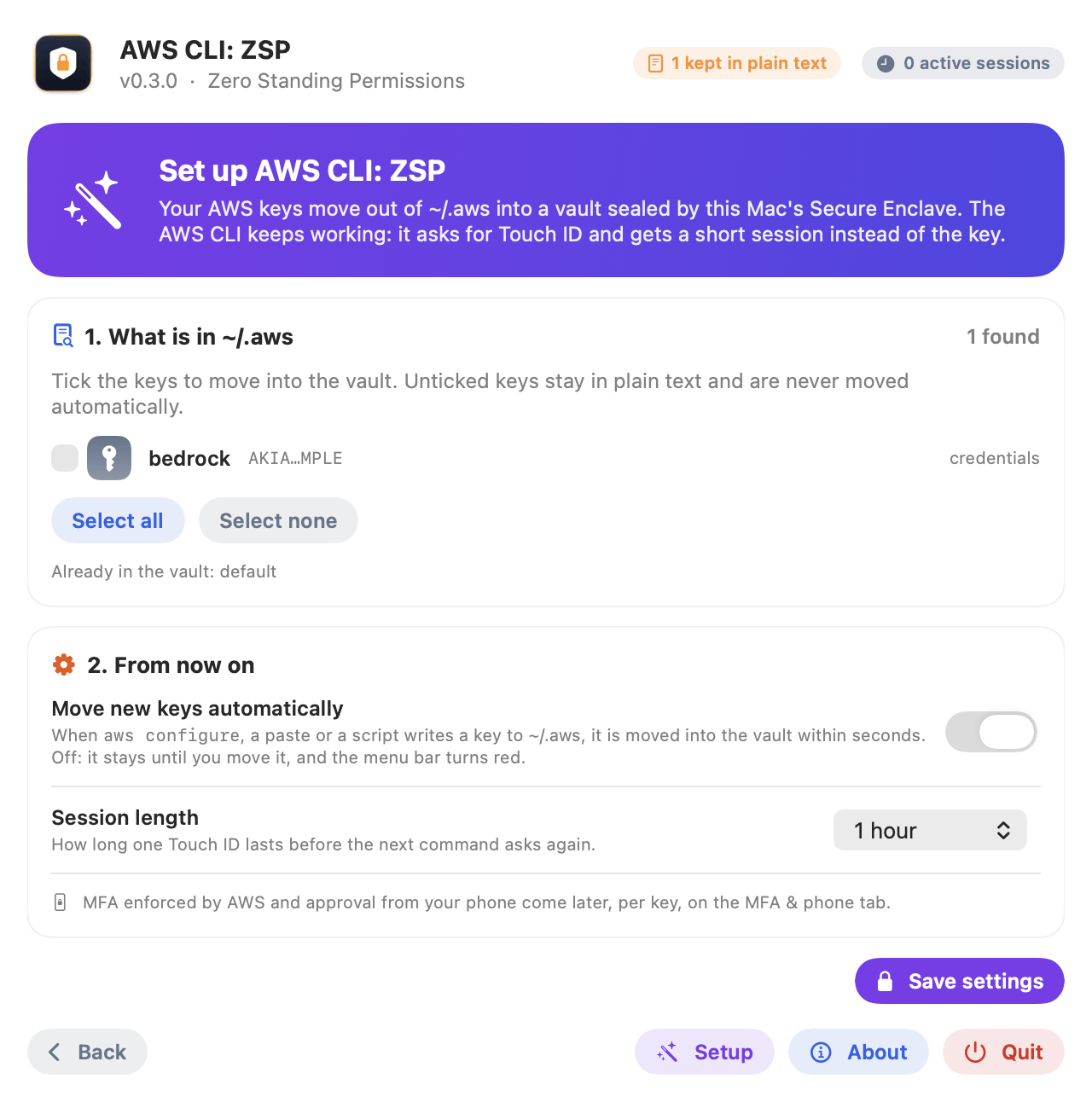
- 1What is in ~/.aws lists every key it found. Tick the ones to move into the vault. Unticked keys stay in plain text and are never moved automatically.
- 2Move new keys automatically: when on, a key that aws configure, a paste or a script writes to ~/.aws is moved within seconds. When off, it stays put and the menu bar turns red until you move it.
- 3Session length: how long one Touch ID lasts before the next command asks again. One hour by default, anywhere from 15 minutes to 12 hours.
- 4Click Save settings. Each key moved is sealed, read back to prove it is good, and only then removed from the file. Its profile is pointed at aws-cli-zsp, so aws --profile bedrock s3 ls works as before.
Setup in the panel’s footer runs this again at any time. From the command line instead:
aws-cli-zsp setup --move default,bedrock --keep personal --auto on --duration 1h
aws-cli-zsp doctor
One touch, then an hour of work.
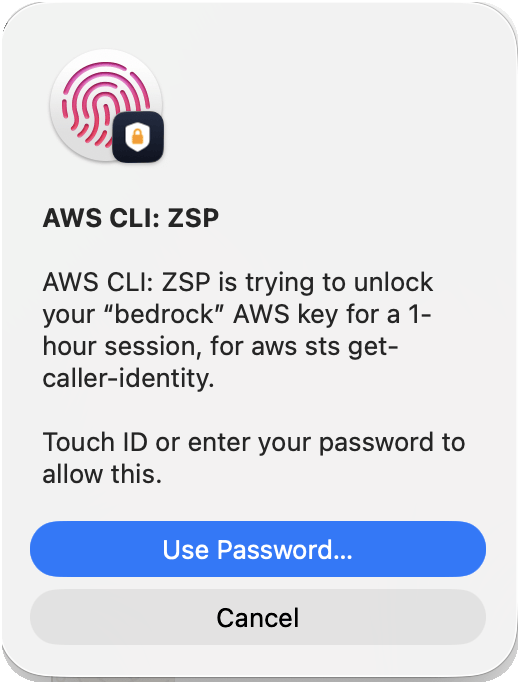
The first AWS command each hour shows a Touch ID prompt. It names the key, the session length and the command that asked. Approve it and the AWS CLI gets a session; every command after that reuses it without asking, until it expires.
Read the prompt. “aws s3 rm wants your production key” when you did not type aws s3 rm is one to cancel. The command shown is what the asking program says about itself, so decline any prompt you did not cause.
The key is open only for the one call that gets the session, then dropped. A leaked session ends on its own and cannot be used to make a new key. To end sessions sooner:
- Clear cached session (the ⋯ menu on the Keys tab) drops the one cached on this Mac; the next command asks for Touch ID.
- Revoke tells AWS to refuse every session issued so far for that key, wherever it is.
- A shorter session length narrows the window: in Setup for every key, or aws-cli-zsp duration --profile NAME 15m for one.
Test Touch ID on the Overview (or aws-cli-zsp check-touch-id) shows the prompt and unlocks nothing.
One card per key.
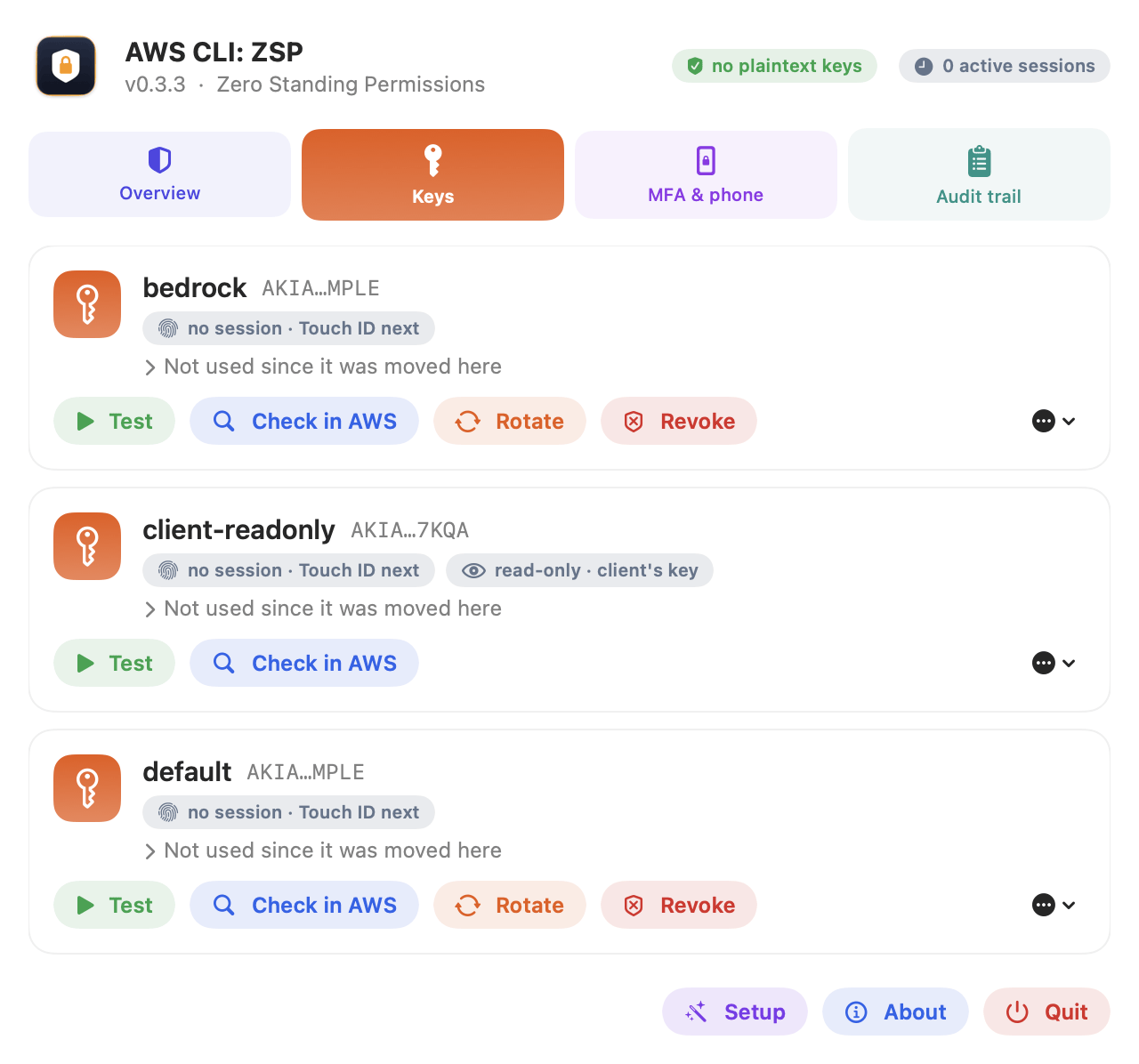
The Keys tab shows each key in the vault: whether it has a live session, when it was last used and by which command, and buttons for what you can do with it. Click the last use line to see the full command and the key’s owner, with copy buttons.
Test
Makes a real AWS call (GetCallerIdentity) with the key, to prove it works.
Check in AWS
Asks AWS who the key belongs to, what that user may do, and when AWS last saw each of its keys used.
Rotate
Creates a new key, checks it works, swaps it into the vault, and only then deletes the old one.
Revoke
Kills every session already issued for the key, including any a thief may be holding.
⋯ menu
Clear cached session, Deactivate key, Delete key (in AWS), Remove from this Mac, and Mark read-only (client’s key).
Keys a client gives you
A client’s key often belongs to a user who may read their account but not change itself. Nothing in the client’s account needs changing. Sessions work as normal. Check in AWS finds out what the user may do and hides the rest (rotate, revoke, MFA), and the card says read-only · client’s key. Mark one by hand from the ⋯ menu, or with aws-cli-zsp access --profile NAME read-only.
Adding a key later
With automatic move on, use aws configure as usual and the key moves into the vault within seconds. Or type it straight in with aws-cli-zsp add --profile NAME, so it never touches a file.
Make AWS itself demand MFA.
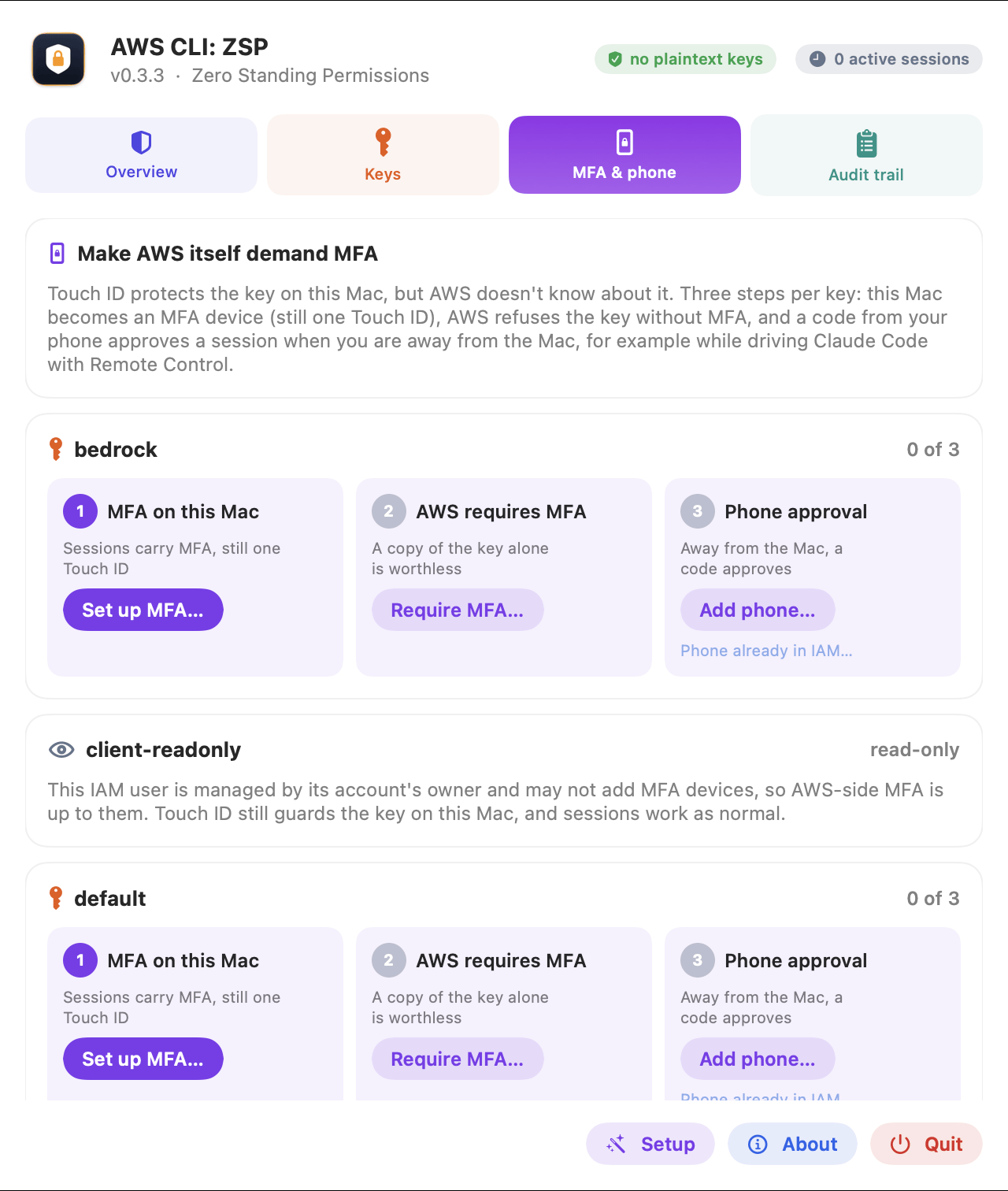
Touch ID protects the key on this Mac, but AWS does not know about it. A copy of the key that got out some other way would still work. The MFA & phone tab closes that gap in three steps per key. Each is a button, and each finished step has an undo link under it in case something that uses the key stops working.
- 1MFA on this Mac (Set up MFA…). The Mac becomes an MFA device for the key’s user. Every session carries MFA, and it still costs one Touch ID. Undo: Remove MFA.
- 2AWS requires MFA (Require MFA…). AWS refuses everything the key does without MFA, so a copy of the key on its own is worthless. It will not turn on until an MFA session from this Mac has worked, so it cannot lock you out. Undo: Stop requiring MFA.
- 3Phone approval (Add phone…). For when you are away from the Mac, below. Undo: Turn off phone approval.
The same first two steps from the command line:
aws-cli-zsp mfa setup   --profile bedrock   # this Mac becomes an MFA device for the key
aws-cli-zsp mfa enforce --profile bedrock   # AWS refuses the key without MFA
Approving from your phone
If you drive Claude Code from your phone over Remote Control, a Touch ID prompt on the Mac would wait where nobody can see it. So when the screen is locked, or nobody has touched the keyboard or trackpad for 5 minutes, a new session fails at once and says what to do. With phone approval on, a 6 digit code from any authenticator app approves it: Google Authenticator, Microsoft Authenticator, 1Password, Authy or similar.
Set it up once, at the Mac. Steps 1 and 2 must be done first.
- 1On the MFA & phone tab, click Add phone… under step 3.
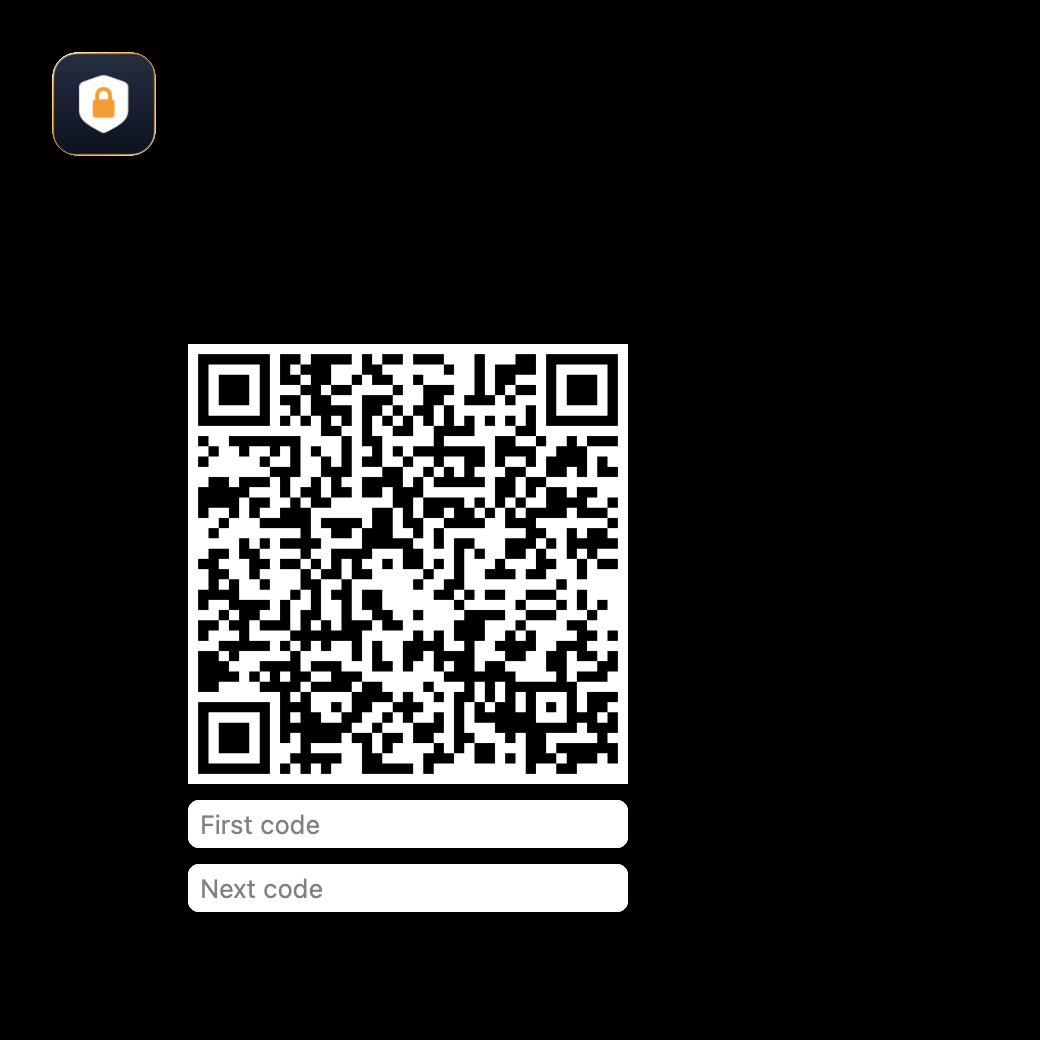
- 2Scan the QR code with your authenticator app (or type the secret in by hand).
- 3Type the code it shows, wait for the next one, type that too, and click Enable.
Already added a phone for that user in the IAM console? Click Phone already in IAM… instead, or run aws-cli-zsp remote enable --profile NAME.
Then, from your phone:
- 1Ask Claude for something that needs AWS. The command fails at once and tells Claude to ask you for a code.
- 2Claude asks: “I need the 6-digit code for bedrock.”
- 3Copy the code from your authenticator app and send it in the chat.
- 4Claude runs aws-cli-zsp approve, AWS checks the code, and the session lasts the usual hour.
The same steps from the command line:
aws-cli-zsp mfa add-phone --profile bedrock     # once, at the Mac: a QR code
aws-cli-zsp mfa confirm-phone --profile bedrock --serial ARN 123456 654321
aws-cli-zsp approve --profile bedrock 123456    # what Claude Code runs with your code
Why this is safe. AWS checks the code, not aws-cli-zsp. The copy of the key used for phone approval is still sealed to this Mac’s chip, holds no MFA secret, and is only made once AWS requires MFA. So a program that reads it gets a key AWS refuses without a code from your phone. A code is good for 30 seconds and AWS rejects it if it is used twice. There is no push approval: AWS MFA is codes only.
Every use, and who asked.
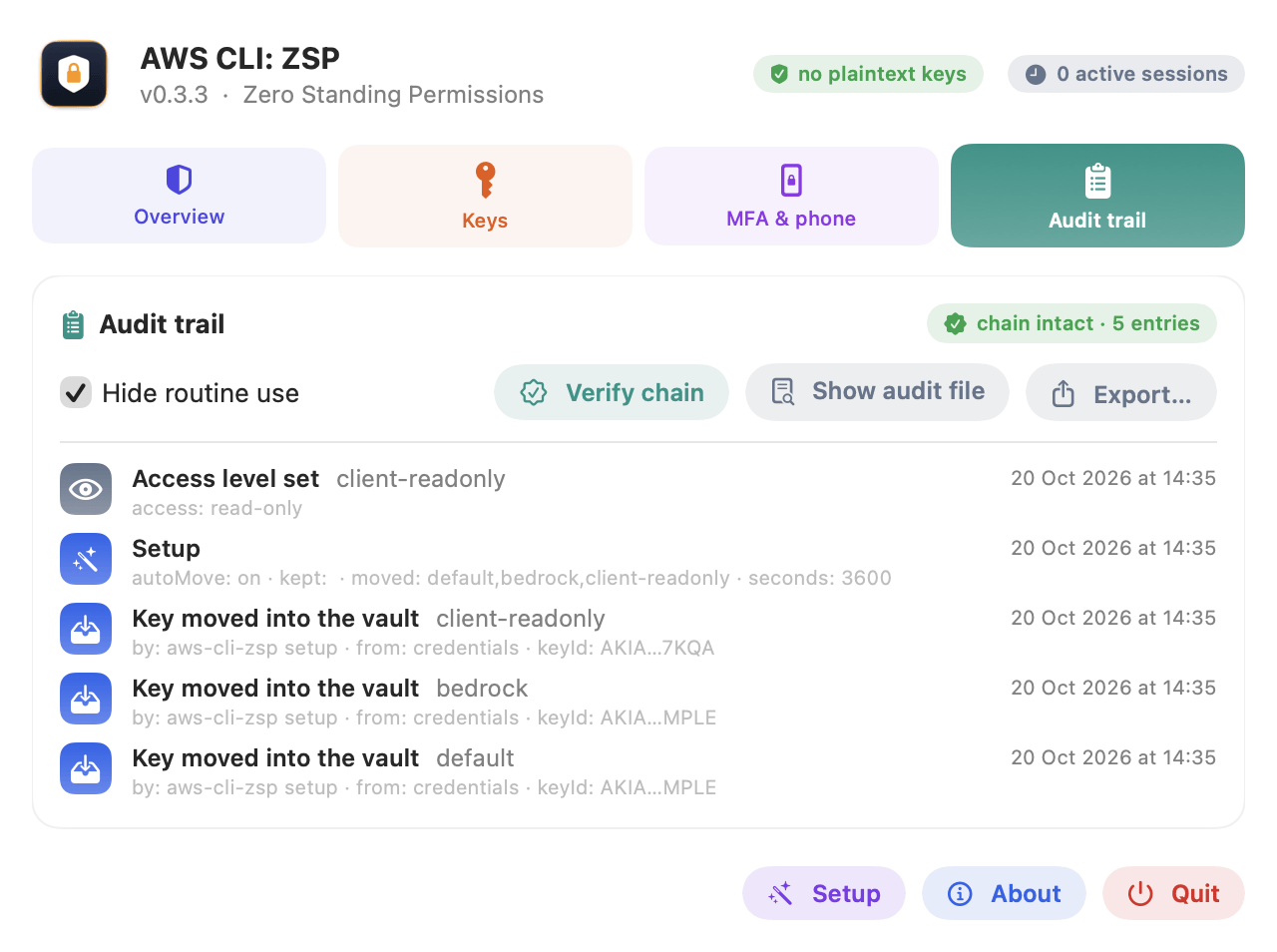
Every key moved in, session issued, session used, rotation, revocation, MFA change and refusal is recorded, with the command that asked. Failures show in red: a Touch ID you declined, a session AWS refused, a rotation that did not finish, a key that was swapped.
- Hide routine use leaves out ordinary session reuse so the changes stand out.
- Verify chain checks nobody has edited, deleted or cut entries. Each entry carries a fingerprint of the one before it.
- Show audit file opens it in Finder.
- Export… saves a report for support with secrets removed, key ids masked and account ids cut to their last 4 digits.
Treat it as a record of what happened, not as evidence against an attacker already on the Mac; AWS CloudTrail is the record nothing on the Mac can touch.
Am I really protected?
On the Overview, Run checks (or aws-cli-zsp doctor) tests every part that must work for you to be protected, with no prompt. Each check says what is wrong in plain words, and the ones one command can fix have a Repair or Move now button. Test auto-move writes AWS’s published example key to ~/.aws and times how fast it is moved.
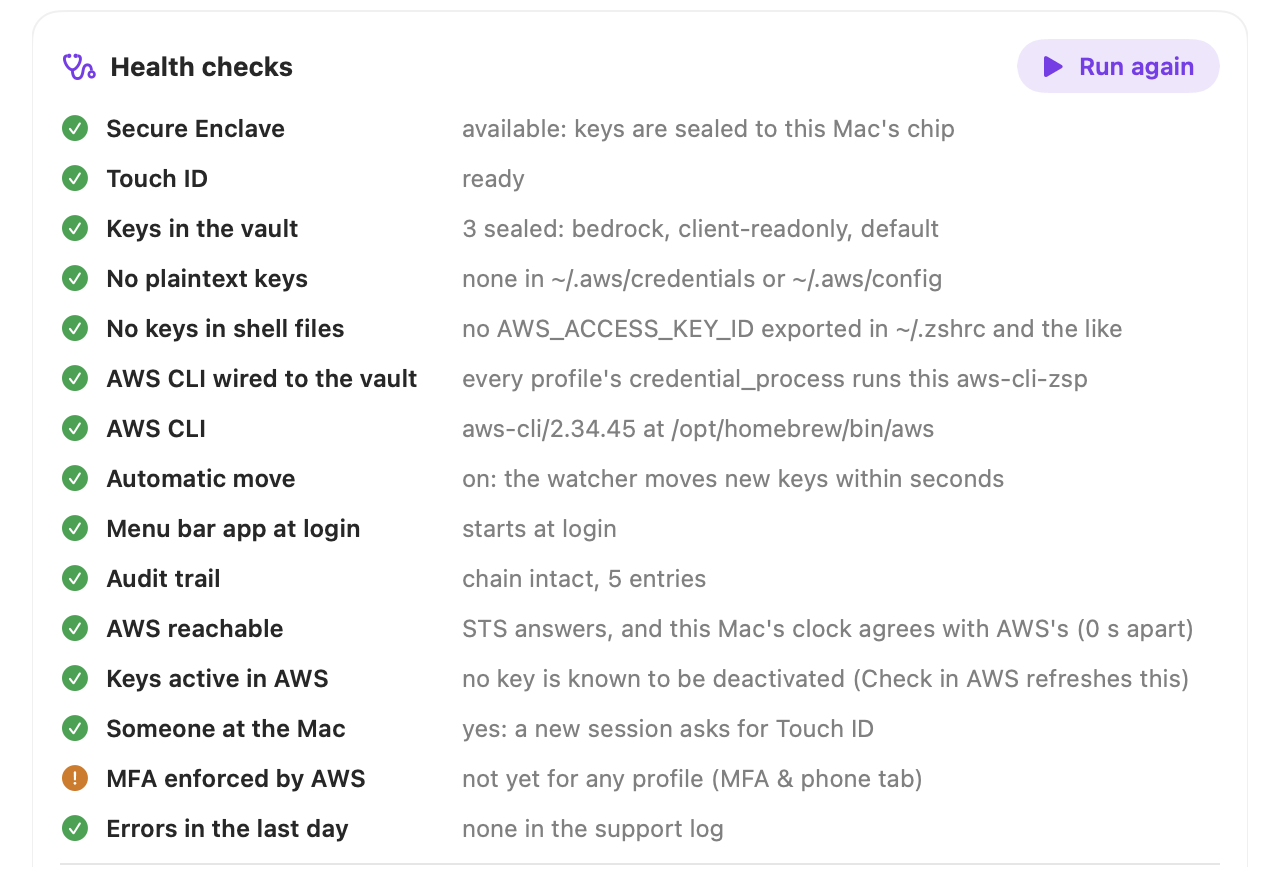
Secure Enclave and Touch ID
The chip is there and Touch ID is ready. A closed lid or no sensor means macOS asks for your login password instead.
No plaintext keys
Nothing readable left in ~/.aws/credentials or ~/.aws/config. Move now fixes it.
No keys in shell files
An export AWS_ACCESS_KEY_ID=… in ~/.zshrc and the like. The AWS CLI prefers it to any profile, so the vault is bypassed.
AWS CLI wired to the vault
Every profile’s credential_process runs this copy of aws-cli-zsp, not a moved or old one, or someone else’s program.
AWS CLI
Installed, and version 2.
Automatic move
The watcher is running and moves new keys within seconds.
AWS reachable
Offline, VPN or proxy in the way, DNS, or a Mac clock more than 4 minutes off (AWS refuses signed requests at 5).
Keys active in AWS
A key someone deactivated in the IAM console.
MFA enforced by AWS
A warning until AWS refuses the key without MFA (see MFA and phone approval).
Errors in the last day
The latest error from the support log.
Warnings and errors also show as Recent problems on the Overview until you dismiss them.
Everything the panel does.
Every button in the panel has a command behind it. Add --json to any of them for a machine readable result. P is a profile name, such as bedrock.
aws-cli-zsp setup [--move P,..] [--keep P,..] [--auto on|off] [--duration 1h]
Choose which keys move, whether new keys move automatically, and the session length.
aws-cli-zsp doctor
Every health check, with no prompt.
aws-cli-zsp list
Keys in the vault, sessions, last use and by whom.
aws-cli-zsp scan
Plaintext keys left in ~/.aws (exits 1 if there are any).
aws-cli-zsp add --profile P
Type a key in, secret hidden. It never touches a file.
aws-cli-zsp test --profile P
A real AWS call with the key.
aws-cli-zsp inspect --profile P
Who the key belongs to, and when AWS last saw each key used.
aws-cli-zsp rotate --profile P [--keep-old]
New key, verified, then the old one deleted (or only deactivated).
aws-cli-zsp revoke-sessions --profile P
Deny every session issued before now.
aws-cli-zsp clear-sessions [--profile P]
Drop cached sessions on this Mac. The next command asks for Touch ID.
aws-cli-zsp duration --profile P 8h
Session length, from 15 minutes to 12 hours (default 1 hour).
aws-cli-zsp exec --profile P -- terraform plan
Run one command with a session in its environment.
aws-cli-zsp mfa setup | enforce | unenforce | remove --profile P
This Mac as an MFA device, and AWS demanding MFA, with the undo for each.
aws-cli-zsp remote enable [--serial ARN] | disable --profile P
Turn approval by phone code on or off. Use enable for a phone already set up in the IAM console.
aws-cli-zsp approve --profile P CODE
Approve a session with a code from your phone.
aws-cli-zsp access --profile P read-only|full|auto
A client’s key: hide or offer the actions that change IAM.
aws-cli-zsp audit [--verify] [--limit N]
Show the audit trail, or check nobody has edited it.
aws-cli-zsp diagnostics
A redacted report for support, saved on the Desktop.
aws-cli-zsp check-touch-id
Show the Touch ID prompt and unlock nothing.
aws-cli-zsp ui
Open the panel in a window.
aws-cli-zsp uninstall [--restore-plaintext]
Remove it, and optionally put the keys back in the file.
And what it does not.
The gaps all come from one fact: a program running as your macOS user can do what you can do without Touch ID. It never gets the long lived key.
A stolen laptop, backup, or a copy of ~/.aws or the vault folder
Protected. Nothing in them works off this Mac’s chip.
A script, package or tool that reads ~/.aws/credentials
Protected. The file holds no keys.
A program that wants your long lived key
Protected. Only the Secure Enclave can unseal it, and only after Touch ID.
A key copied off the Mac some other way
Protected once MFA is enforced: AWS refuses it without a code.
Malware swapping your key for one to its own AWS account
Protected. Each profile is pinned to its AWS account and user.
Malware running as you while a session is cached
Not prevented. It can use that session until it expires. A shorter session, clearing cached sessions or Revoke narrow the window. It never gets the key.
Malware rewriting ~/.aws/config to point at its own program
Not prevented, but Run checks shows it.
Malware rewriting the audit trail
Not prevented. Treat the trail as a record, not evidence. AWS CloudTrail is the record it cannot touch.
Put everything back.
This writes every key in the vault back to ~/.aws/credentials in plain text and removes the watcher, the login item and the command. It asks you to confirm first:
aws-cli-zsp uninstall --restore-plaintext
- 1If AWS requires MFA for a key, undo that first with aws-cli-zsp mfa remove --profile NAME. This Mac’s MFA device lives only in the vault, so uninstall refuses rather than lock the key out.
- 2Run the line above.
- 3Quit the shield in the menu bar and delete ~/Applications/aws-cli-zsp.app.
Without --restore-plaintext, uninstall removes only the background parts: the keys stay sealed in the vault and the profiles still use aws-cli-zsp, so keep the app.
Common questions.
Which Macs does it run on?
macOS 14 Sonoma or later, on a Mac with a Secure Enclave: any Apple silicon Mac, or an Intel Mac with a T2 chip. Touch ID is needed for the prompts; without it macOS asks for your login password.
Do I have to change how I use the AWS CLI?
No. aws --profile bedrock s3 ls works as before. The first command each hour asks for Touch ID and the rest reuse the session.
How is it different from aws-vault?
It is built from scratch on the same idea (keys out of files, sessions to the CLI) and adds the rest: keys written to ~/.aws move by themselves, Touch ID is enforced by the chip, the audit trail names the caller, rotate and revoke are one click, AWS itself can demand MFA, and you can approve from your phone.
Does it need anything changed in my AWS account?
Not for sessions: they need no IAM permission, so a read only client key works. Rotate, revoke and the MFA steps change IAM, so they need the matching permissions on the key’s own user, and are hidden when it does not have them.
Can I keep some keys in plain text?
Yes. Untick them in Setup (or use --keep). Unticked keys stay where they are and are never moved automatically.
Does it work with roles and AWS China or GovCloud?
Not yet. Profiles that assume a role with mfa_serial are not handled by aws-cli-zsp, and only the standard AWS partition works.
What does it cost?
Nothing. It is open source under the MIT licence.
If something is not right.
Start with Overview, Run checks. Most problems show up there with a fix.
I cannot see the shield in the menu bar
A crowded menu bar hides it behind the notch. Open aws-cli-zsp from Spotlight, or run aws-cli-zsp ui, for the same panel in a window.
An aws command fails at once instead of asking for Touch ID
The screen is locked, or the Mac has had no keyboard or mouse input for 5 minutes, so it counts as nobody there. Touch the trackpad and run it again, or approve with a code from your phone.
The AWS CLI ignores the vault
Usually an export AWS_ACCESS_KEY_ID in ~/.zshrc or similar, which the CLI prefers to any profile. Run checks names the file.
Every AWS call fails with a signature or time error
The Mac’s clock is off. AWS refuses signed requests 5 minutes out. Run checks shows the gap.
InvalidClientTokenId
The key was deactivated or deleted in AWS, or it belongs to AWS China or GovCloud, which are not supported. Check in AWS on the Keys tab says which.
I changed a profile to a key for another AWS account and it is refused
That is the account pin doing its job. If you meant it, run aws-cli-zsp pin reset --profile NAME (Touch ID).
Uninstall with --restore-plaintext is refused
MFA is enforced for that key, and this Mac’s MFA device lives only in the vault. Run aws-cli-zsp mfa remove --profile NAME first.
AWS refuses everything after MFA was enforced
If this Mac can no longer get an MFA session (its device deleted in the console), delete the inline policy aws-cli-zsp-require-mfa from the user in the IAM console.
Something else
Overview, Save diagnostics… (or aws-cli-zsp diagnostics) writes a report to the Desktop with secrets removed, key ids masked and account ids cut to their last 4 digits. Attach it to an issue on GitHub. The support log is ~/Library/Application Support/aws-cli-zsp/logs/aws-cli-zsp.log.
Still stuck, or found a gap?
Open an issue on GitHub with what you saw and the diagnostics report. If there is a way to lose a key it does not catch, that is the most useful issue of all. The source is there too, if you want to check what it does.