What is wrong with your Mac, and the fix.
System Sentinel lives in the menu bar. It notices when the Mac runs hot, runs short of memory, drains its battery, fills its disk or loses its connection, says which app is behind it in plain English, and fixes it in a click. It was built after a macOS logger quietly used one and a half cores for 37 hours and nothing said so.
- Installinstall
- Opening itstart
- Checkupcheckup
- Overview and Trendsoverview
- Processes and killingprocesses
- Memorymemory
- Storagestorage
- Networknetwork
- Energy and batteryenergy
- Events and reportsevents
- Settings and rulessettings
- Help and updatesupdates
- Privacy and permissionsprivacy
- Uninstall and resetuninstall
- Questionsfaq
- Problemsproblems
One line, nothing to build.
You need macOS 14 Sonoma or later.
- 1Open Terminal: press Cmd Space, type Terminal, press Return.
- 2Paste this line and press Return:
curl -fsSL https://raw.githubusercontent.com/andrewbakercloudscale/system-sentinel/main/install.sh | bash
- 3System Sentinel opens by itself and a small red chip appears in the menu bar. It is in your Applications folder like any other app.
The script downloads the latest release from GitHub, puts it in Applications, clears the download quarantine flag (the app is not notarised by Apple, so macOS would otherwise refuse it) and opens it. Run the same line again any time to update. The script is on GitHub if you want to read it first.
The menu bar chip.

Click the chip to open the panel. It turns amber or red and takes the symbol of the worst problem when something is wrong: memory pressure, CPU, graphics, low disk, heat or battery.
- Control Option Command S opens it from any app. Use it when the icon is hidden behind the notch of a full menu bar.
- Pop out, at the bottom, moves the panel into a normal window you can drag, minimise and keep open while you work.
- Along the top, the status chip says All clear or names what is wrong; click it to go to that tab. CPU and GPU show how busy the whole Mac is.
- Point at any button and a line says what it does. Settings, Menu bar can add the CPU load, power draw or battery beside the icon.
How it counts
CPU: a share of the whole Mac
Every CPU figure runs from 0 to 100%, where 100% is every core flat out. On a 10 core Mac, one process keeping one core busy shows as 10%. Activity Monitor counts per core, so its numbers are these times the core count.
Network: Mbit/s
The unit speed tests and internet plans use. 8 Mbit/s is 1 MB/s. Disk speeds and sizes stay in bytes.
Nine tabs run along the top. The first time it opens on Checkup; after that it opens where you left it.
Checkup
What is wrong, found on its own or picked from eleven symptoms, each with a fix button.
Overview
Is the Mac busy, and why: CPU and GPU dials, power, what is using it now and over the last hour. Its second page, Trends, shows the last day or week.
Processes
The 30 busiest processes, what each one is, and Kill.
Memory
Memory pressure, swap, which apps hold the most, and what would free it.
Storage
Free space, what is growing, and what is safe to clear.
Network
Is it your Wi-Fi, your provider or the site: link quality, DNS, route and speed tests.
Energy
Power draw, what costs battery, what keeps the Mac awake, battery health and sleep.
Events
Everything flagged or killed this week, your week in brief, and a report to share.
Settings
When a process counts as stuck, alerts, the menu bar, history, and Rules for each app.
What is wrong, and the fix.
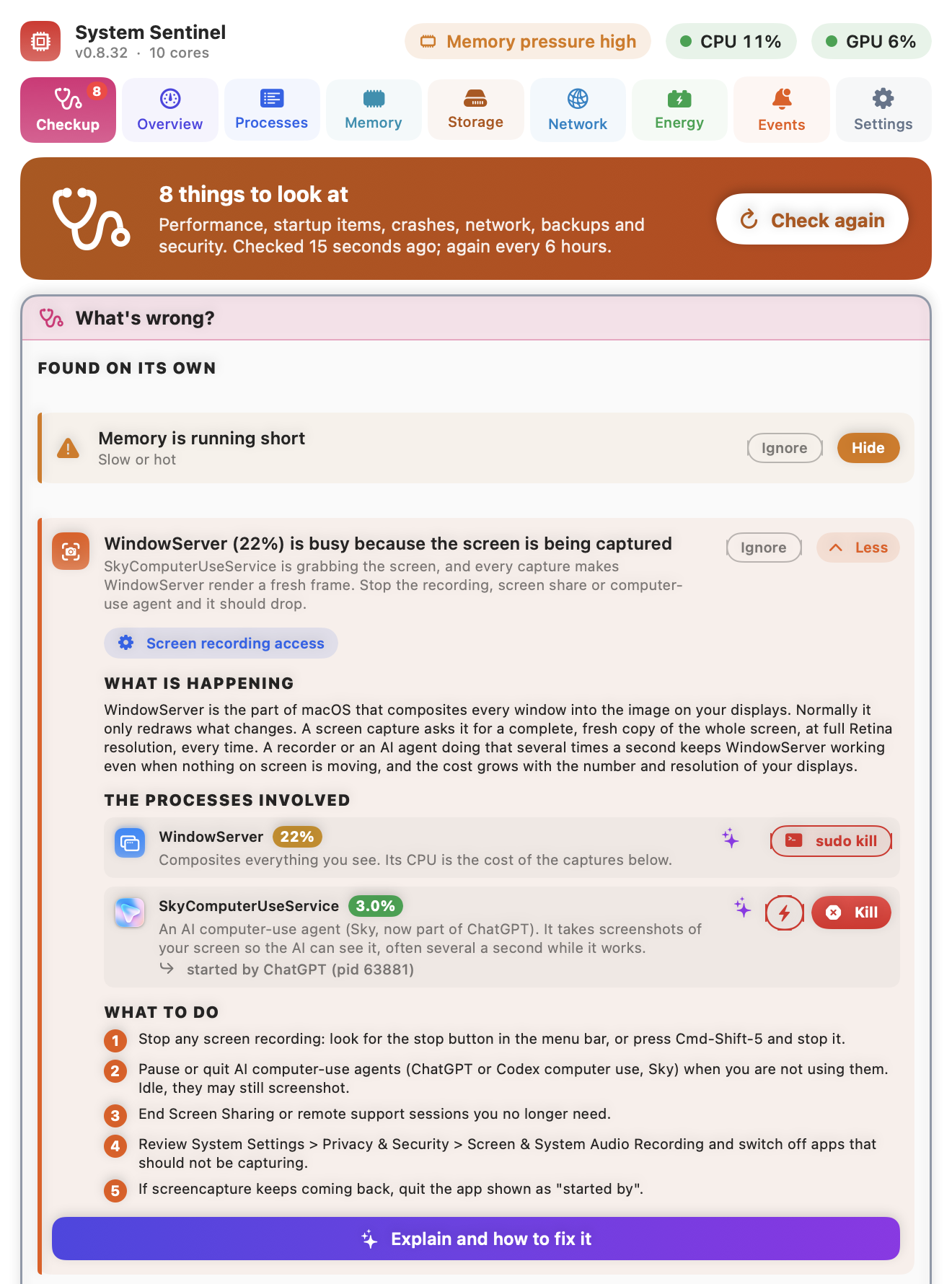
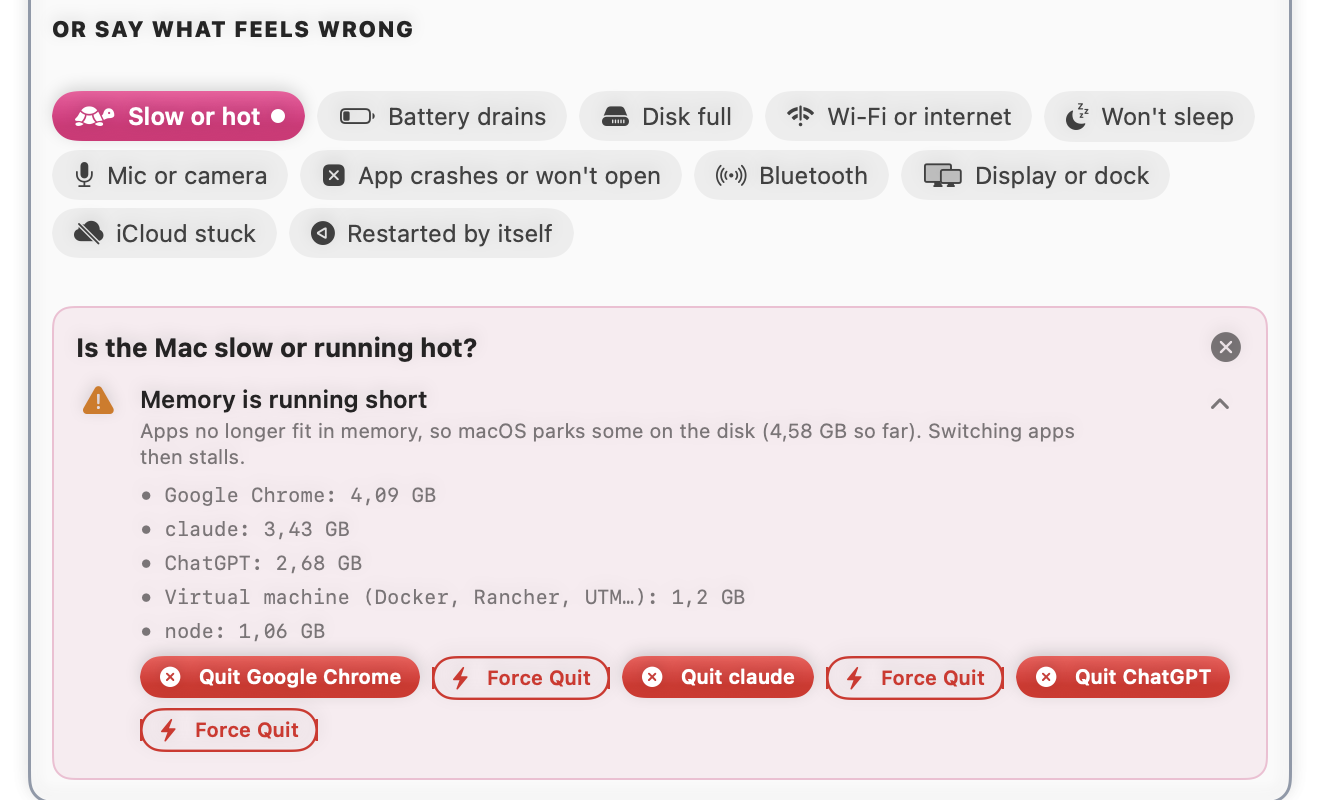
Open Checkup when the Mac feels wrong. The top says what was found on its own; below it, pick what you feel and it opens what it found there, with buttons that act: Quit, Force Quit, Let the Mac sleep, Turn on Low Power Mode, or the exact page of System Settings.
Found on its own
What System Sentinel noticed without being asked: running hot, memory short, the battery draining fast, the disk nearly full, an app keeping the Mac awake or crashing. Each has Fix it and Ignore (or Snooze a day).
Worth knowing
Findings that are not problems, kept below so they do not shout.
Or say what feels wrong
Eleven symptoms: Slow or hot, Battery drains, Disk full, Wi-Fi or internet, Won’t sleep, Mic or camera, App crashes or won’t open, Bluetooth, Display or dock, iCloud stuck, Restarted by itself. A dot means something was found there.
Ignore or Snooze a day
Ignore a finding about an app that is on purpose: it stays hidden until you click Show again. A passing state, such as running hot, has Snooze a day instead.
Pause alerts
The bell at the top right pauses alert notifications for 1 hour, 4 hours or until tomorrow morning. Monitoring carries on, and a low battery still warns.
The checks
System, Apps, Network, Backup and Security, performance first and security last. Buttons with a lock ask for your admin password.
Quick fixes
The everyday restarts (sound, Bluetooth, Wi-Fi, Finder, Dock, iCloud sync), each saying when you would need it.
Click More on a finding for what is happening, the processes involved and who started each one (how you find the app that keeps taking screenshots), and numbered steps. A minute after you quit or kill something, a banner says what it changed: “power 14 W to 6 W, about 4 hours more battery”.
Explain and how to fix it opens ChatGPT in your browser with a ready made prompt: the finding, the processes and your Mac’s model, macOS and displays. The prompt is in the page address, so treat it as shared with OpenAI.
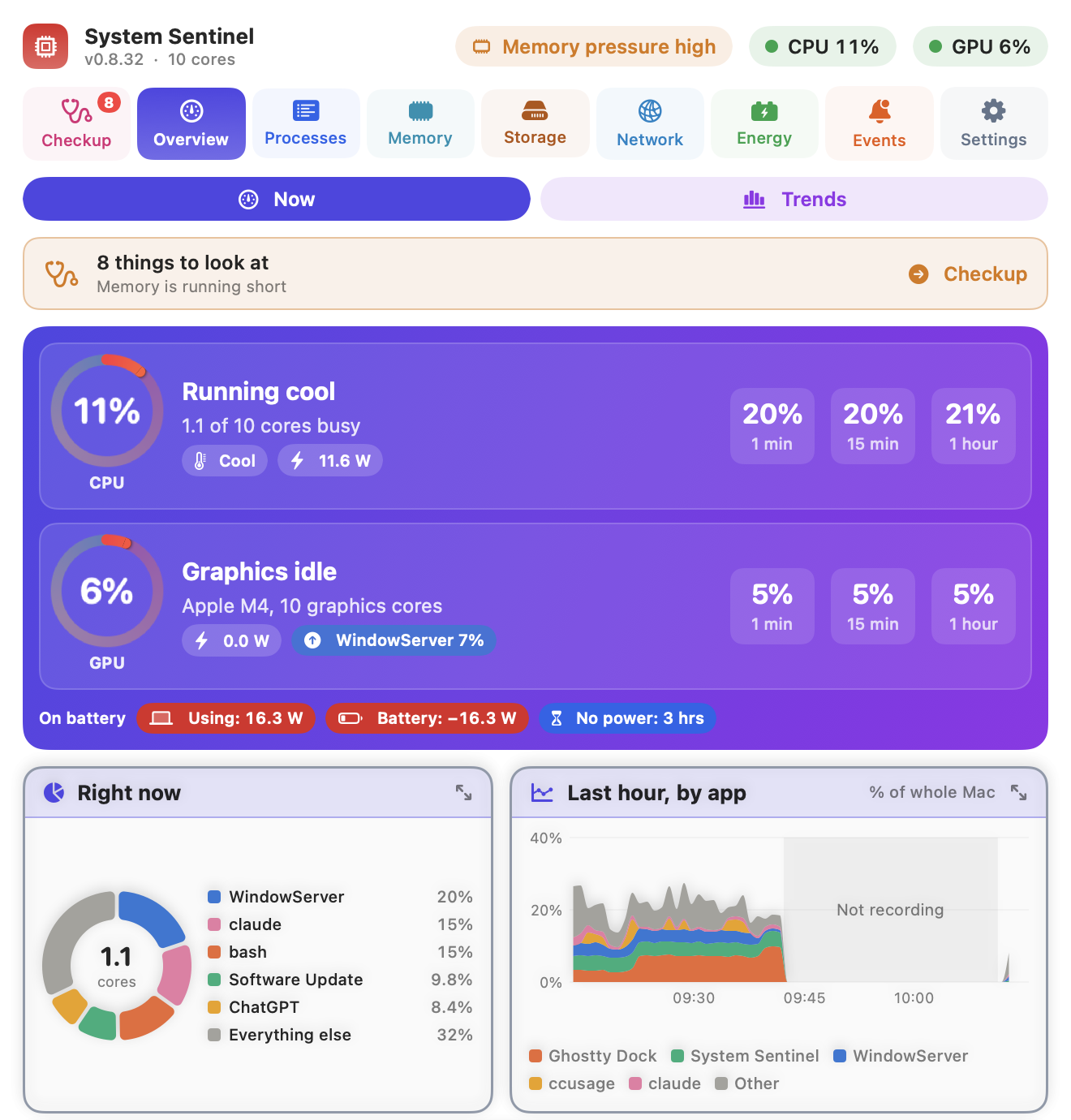
Is it busy, and why.
- CPU and GPU dials with the whole Mac’s load, a heat chip (Cool, Warm, Hot) and the watts each draws. From 30% load it names the two apps doing most of it. Local AI models, video and games load the GPU while the CPU sits idle.
- 1 min, 15 min, 1 hour. A high 1 minute figure with a low hour is a spike; all three high means it has been busy for a while.
- Power line on a MacBook: what the charger delivers, what the Mac uses, and the battery going up or down, then the time until empty (or until full).
- Right now and Last hour, by app. Each app keeps its colour on every chart. Click a chart for a larger, live one.
- Cores. Efficiency cores (E) run background work; busy performance cores (P) are heavy foreground work and most of the power.
Trends
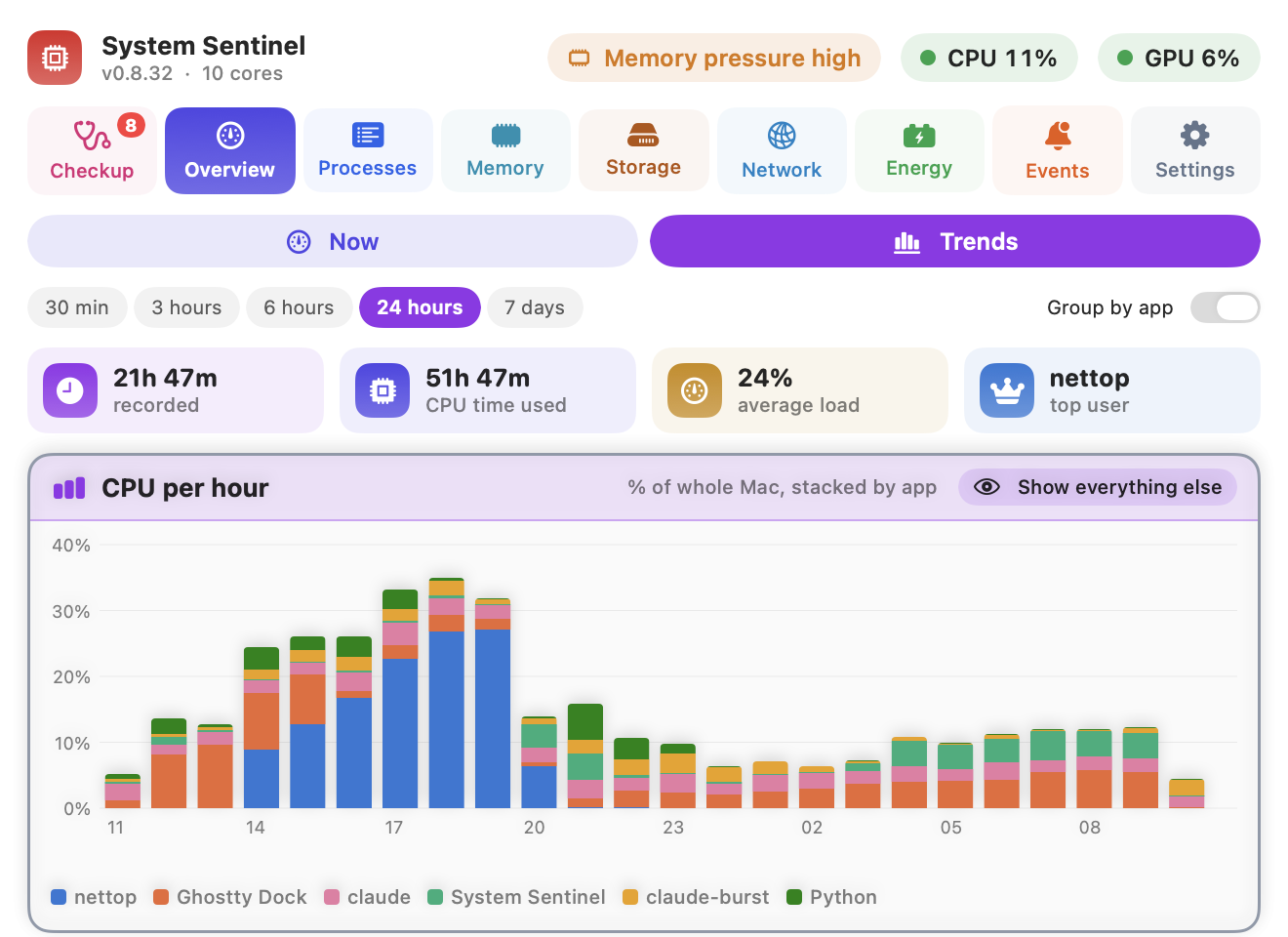
The second page of Overview. CPU by app over the last 30 minutes up to 7 days, kept across restarts, with the heaviest users and when each one peaked. Hours when the app was quit or the Mac was asleep are left blank, not counted as idle. CPU time is core time: one core busy for a minute is a minute, so an app can use more CPU time than the time that passed.
What each one is, and whether to stop it.
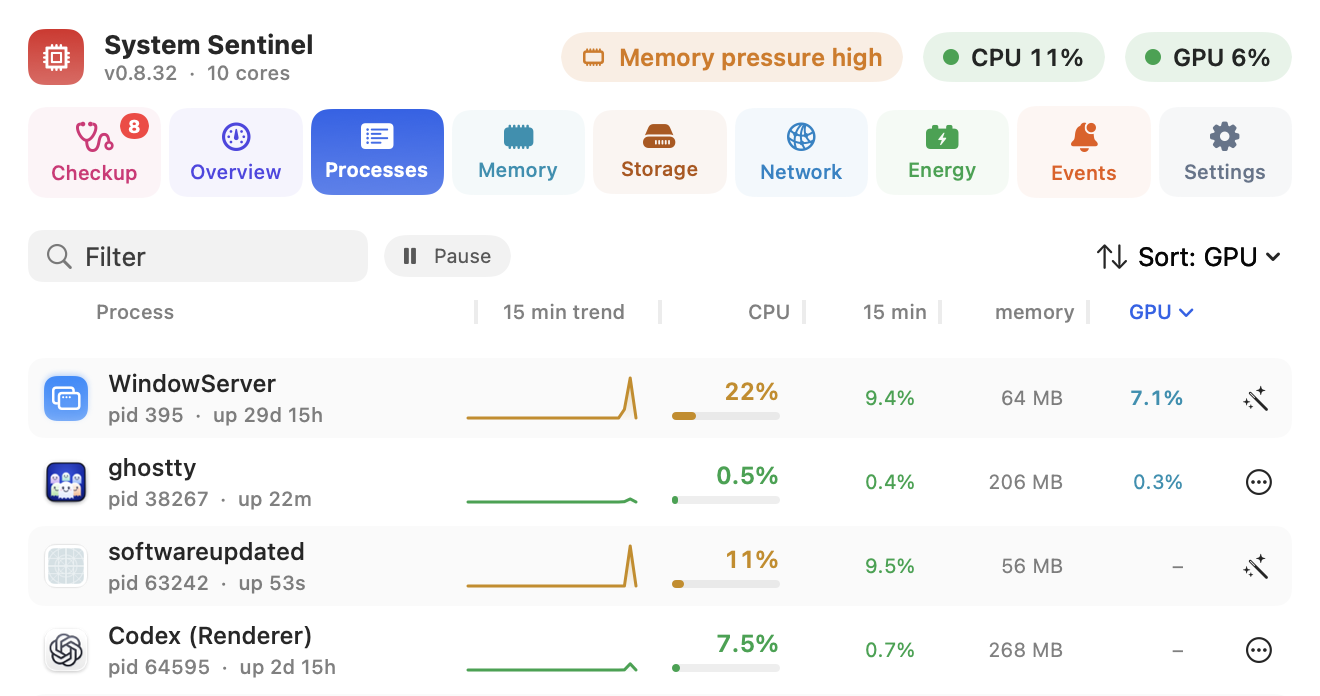
The 30 busiest processes, every 5 seconds. Each shows how long it has been running (a busy process up 13 days is a classic stuck one), a 15 minute trend, CPU, memory and graphics. Click a column title to sort; sorting by an average ranks processes that are idle right now too. A red row is over your limit.
⋯ Actions on each row: What is this? explains it and gives a verdict (Normal, Safe to stop, Do not kill), Explain with ChatGPT, Optimise… and the kills below. Right click for a rule, Bring to front, Quit, Reveal in Finder and Copy pid.
Kill
Your own processes. A polite stop, then a force kill 5 seconds later if it is still running.
Kill (asks for your password)
Processes that run as root. macOS restarts most of these by itself, usually without the problem.
sudo kill…
Core macOS processes such as WindowServer, Finder and Dock. A warning says what will happen first (killing WindowServer logs you out). It never kills the kernel, launchd or itself.
Force kill (kill -9)…
For a process that ignores a polite stop. It confirms first, because the process cannot save.
Quit (right click an app)
The gentle option: asks the app to quit, so it can save your work.
If a process comes straight back under a new number, the banner names what restarted it (macOS or its app): killing it again will not help, stop that instead. Killing a Chrome tab shows “Aw, Snap!”; reload the tab.
Pressure matters, not how full it looks.
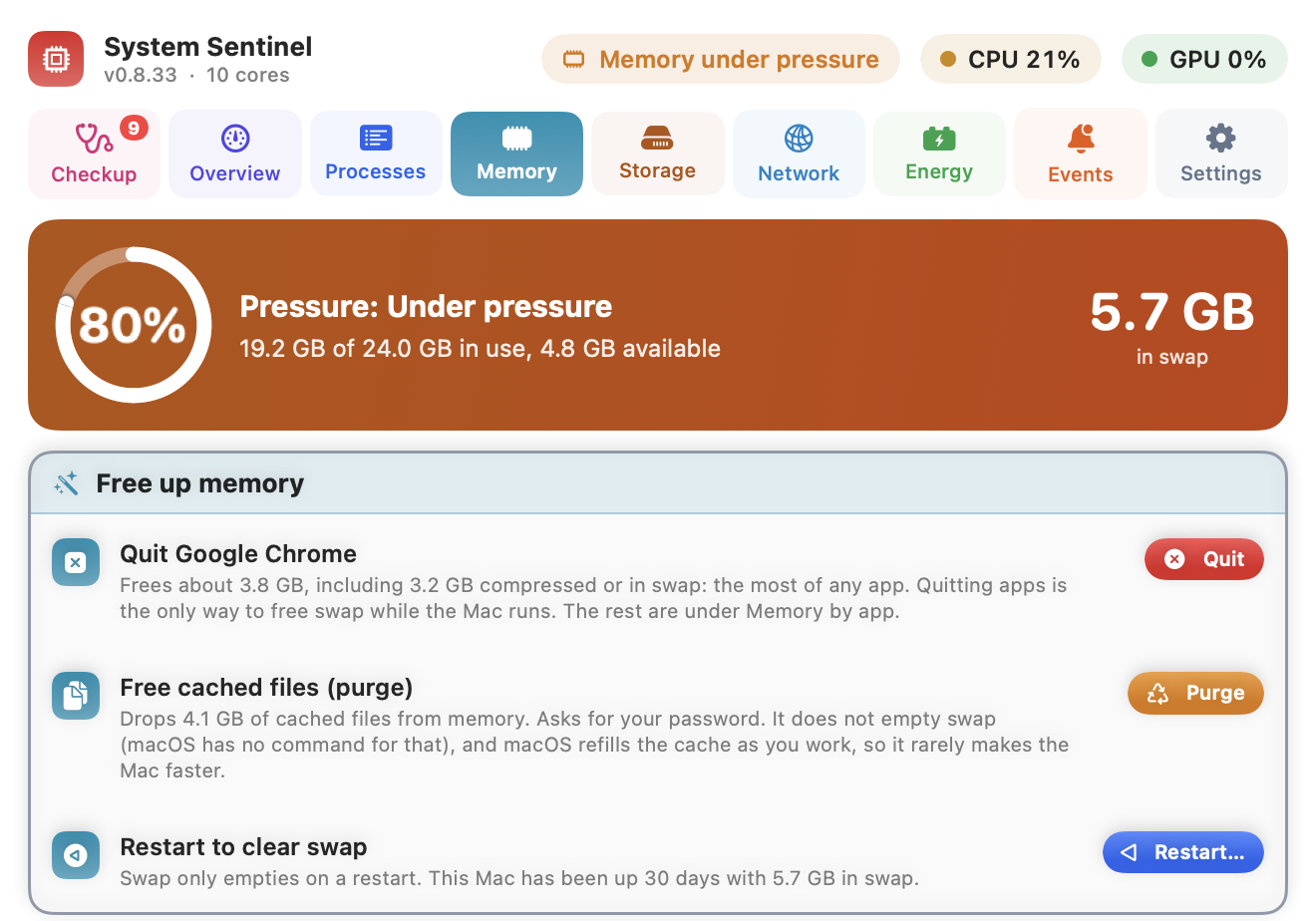
macOS uses spare memory as cache, so a Mac that looks full is usually fine. Pressure is what counts: Normal, Under pressure or Critical. Under pressure, macOS compresses memory and then parks it on the disk (swap), and switching apps stalls.
Free up memory lists what would help, largest first: quit the app holding the most, purge cached files (rarely makes the Mac faster, and it says so), or restart when swap has built up over weeks. Memory by app counts each app with its helpers and virtual machines (Docker, Rancher, UTM). Its Rule menu can quit an app by itself when it holds over 2, 4, 8 or 16 GB for 5 minutes, asking it politely, and never the app in front.
Free space, and what is eating it.
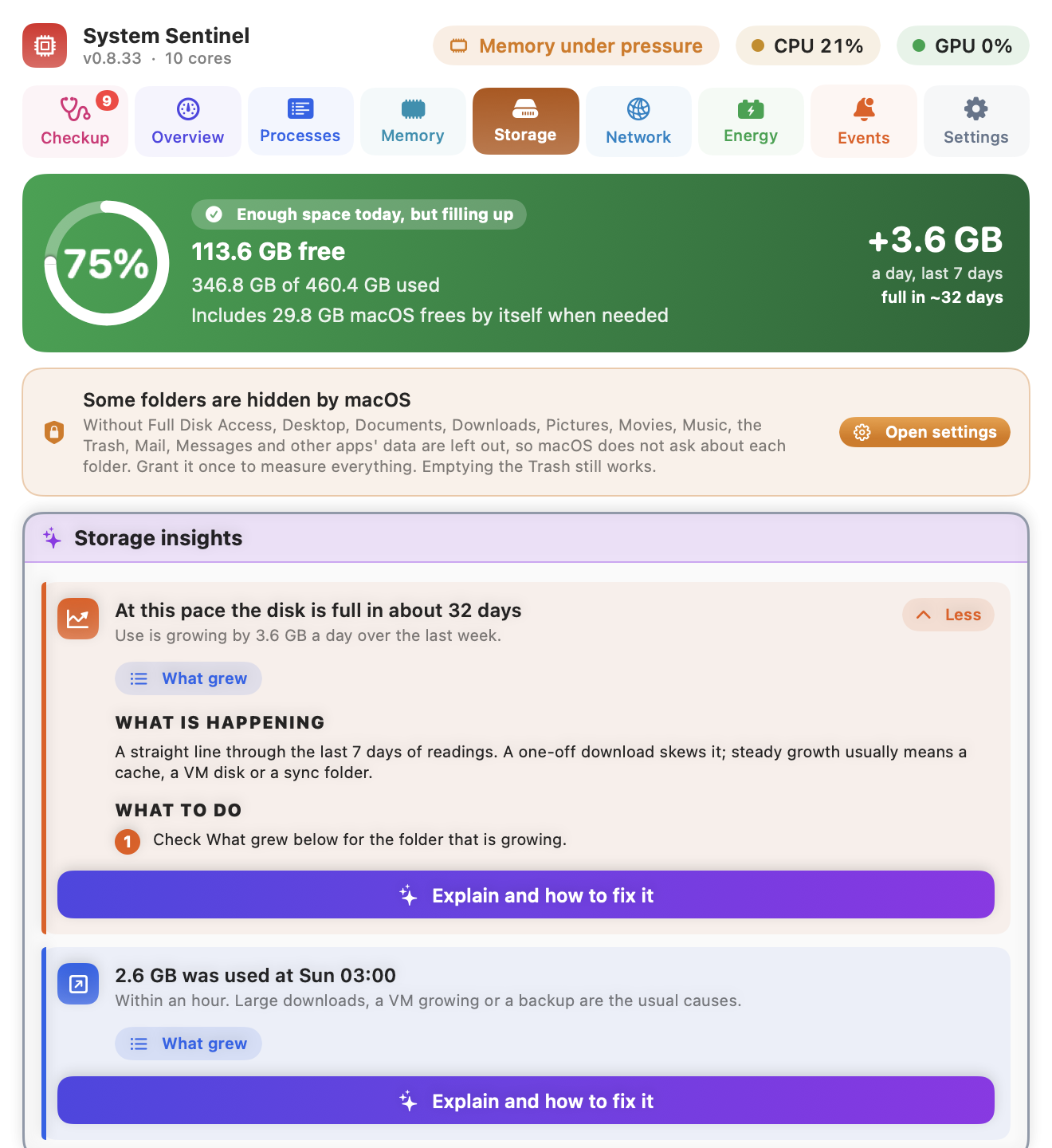
How much is free, including what macOS frees by itself when needed, how fast use is growing over the last week, and when the disk would be full at that pace. What grew names the folders behind it.
Below: where the space is, the largest files, Quick cleanups (caches, the Trash), installer packages you can delete, and videos and photo folders you could move to another disk, each with a button.
Full Disk Access. Without it, macOS hides your Desktop, Documents, Downloads, the Trash, Mail and Messages from every app, and would ask about each folder. Grant it once with Open settings on that card to measure everything.
Your Wi-Fi, your provider, or the site?
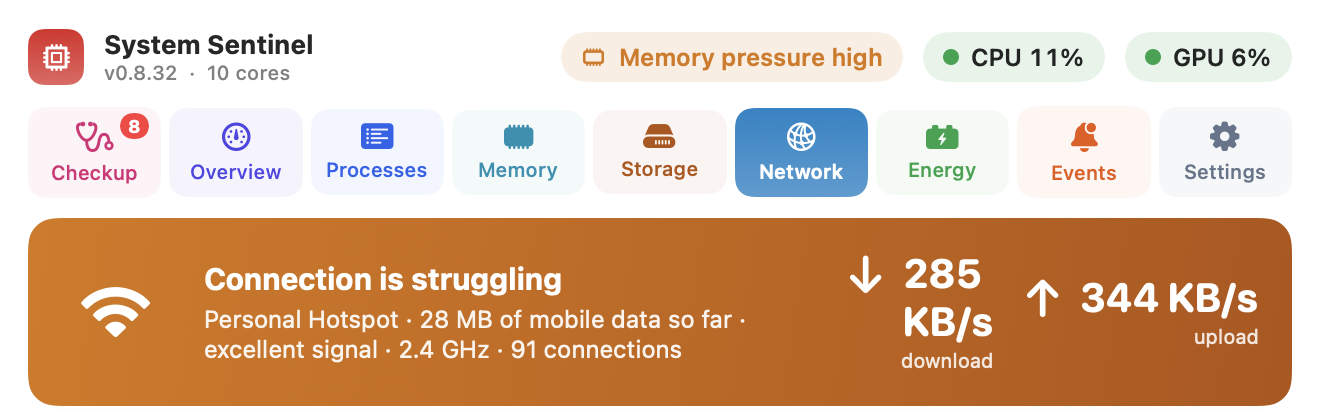
The top line gives a verdict and the link: Wi-Fi signal and band, or a phone hotspot with the mobile data used so far. Below it, quality over time (loss, delay, jitter), the apps using the network over the last hour, and plain English insights, such as packets too large for a VPN tunnel, with the commands to fix it.
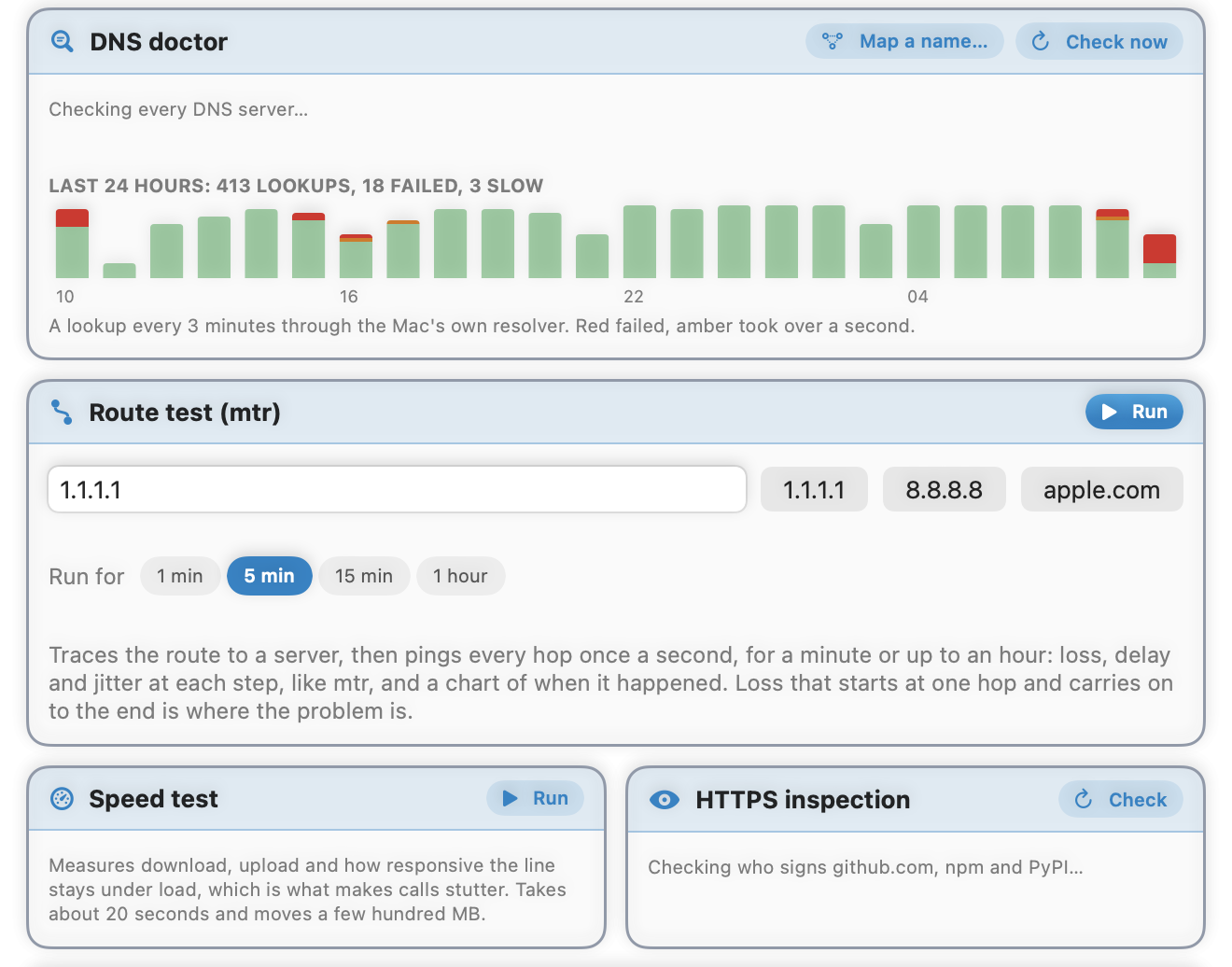
- DNS doctor checks every DNS server the Mac uses, and charts failed and slow lookups over 24 hours. Map a name… shows where a name leads through each DNS server.
- Route test traces the path to a server and pings every hop each second for 1 minute to an hour. Loss that starts at one hop and carries on to the end is where the problem is. It makes a report to send your provider.
- Speed test measures download, upload and how responsive the line stays under load, which is what makes calls stutter. About 20 seconds and a few hundred MB.
- HTTPS inspection checks who signs github.com, npm and PyPI. A work proxy that inspects your traffic shows here, and explains certificate errors in developer tools.
What it draws, and what costs battery.
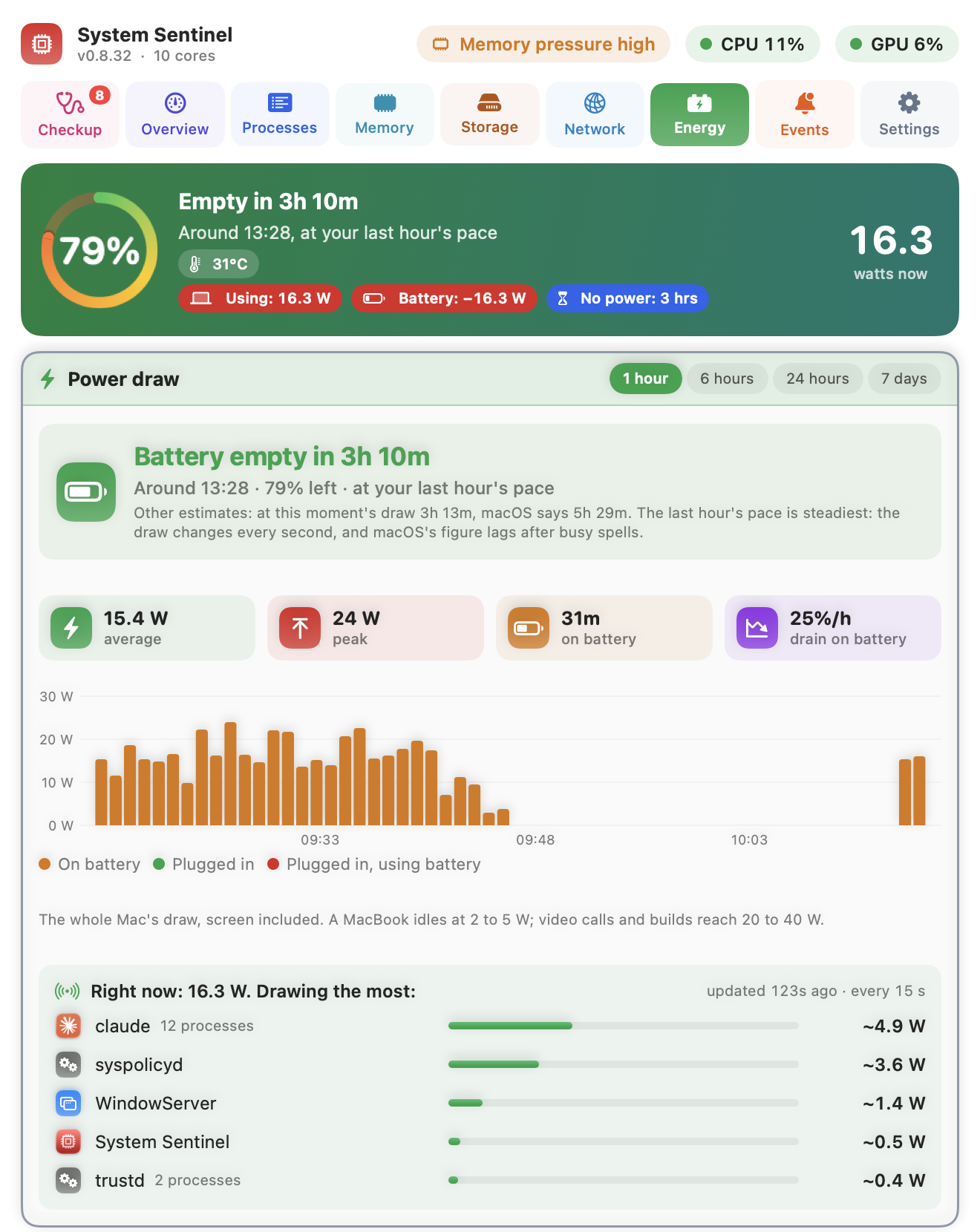
- Battery: charge, time left or time to full, the charger’s watts, temperature and the whole Mac’s draw. A charger too small for the load shows as plugged in but using battery, in red.
- Power draw over the last hour to 7 days. A MacBook doing little draws a few watts; 20 to 30 W is heavy work.
- Power by part (Apple silicon): processor, graphics, Neural Engine, memory and the rest.
- Energy by app, with the minutes of battery each costs an hour. On Chrome, Tabs lists likely energy users with Show and Close.
- Keeping your Mac awake: who blocks sleep and for how long. For caffeinate it names the tool it works for; killing it lets the Mac sleep and the tool carries on.
- Battery health (capacity, cycles and macOS’s verdict), sleep (dark wakes and charge lost with the lid shut; about 1% an hour is healthy) and wear with a projected date for 80%.
What happened this week.
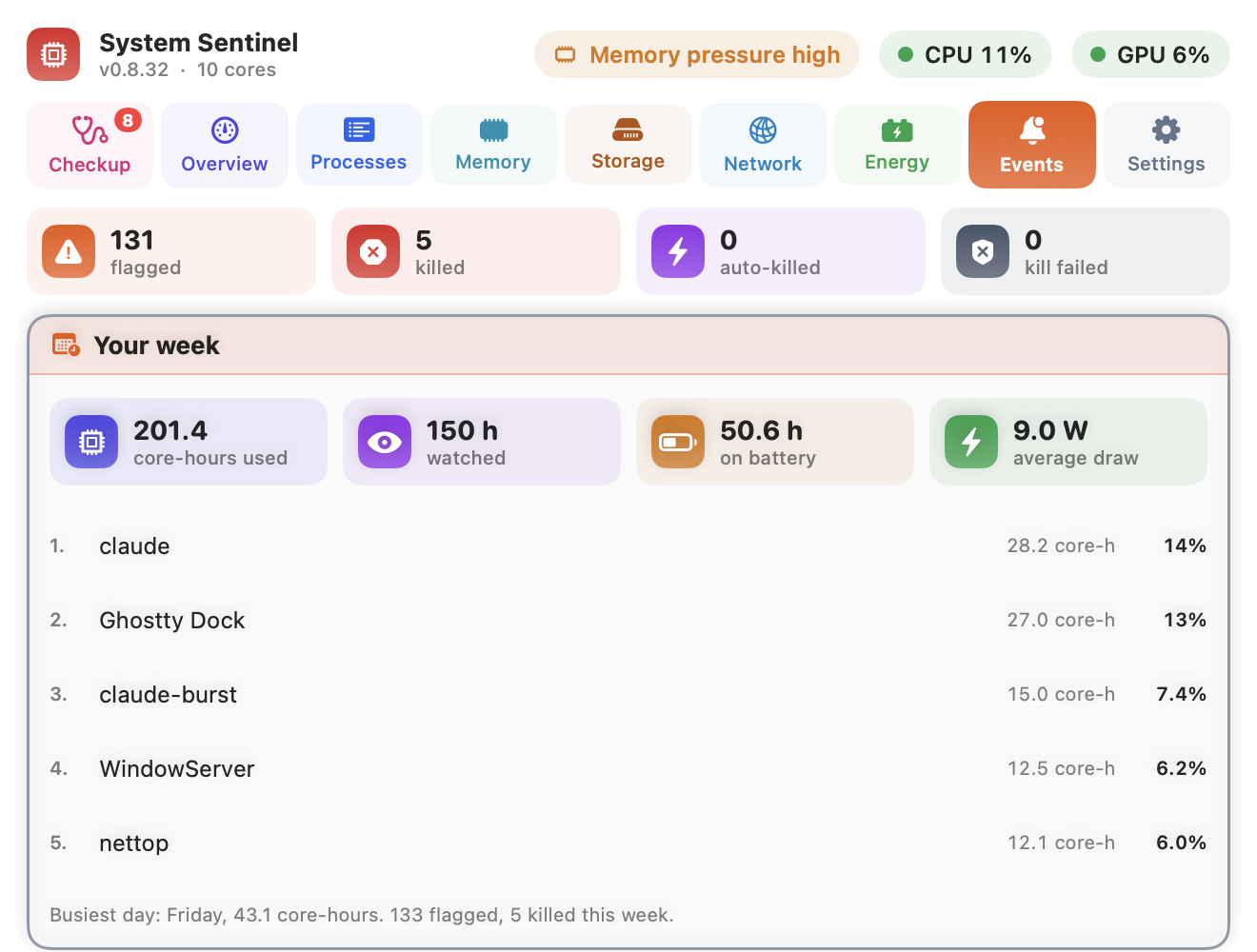
Your week: CPU used, hours watched, time on battery, average draw, the heaviest apps and the busiest day. Then every event: Flagged (stayed over your limit the whole time), Killed, Auto-killed, Kill failed, and Held back (an auto-kill rule hit its 3 an hour).
What stopping things changed lists the measured result of recent quits and kills. Share a report saves the week, today, battery, sleep and memory as Markdown or PDF, for IT or a friend who asked why your Mac is slow. A Monday notification can remind you.
Change it, then Save.
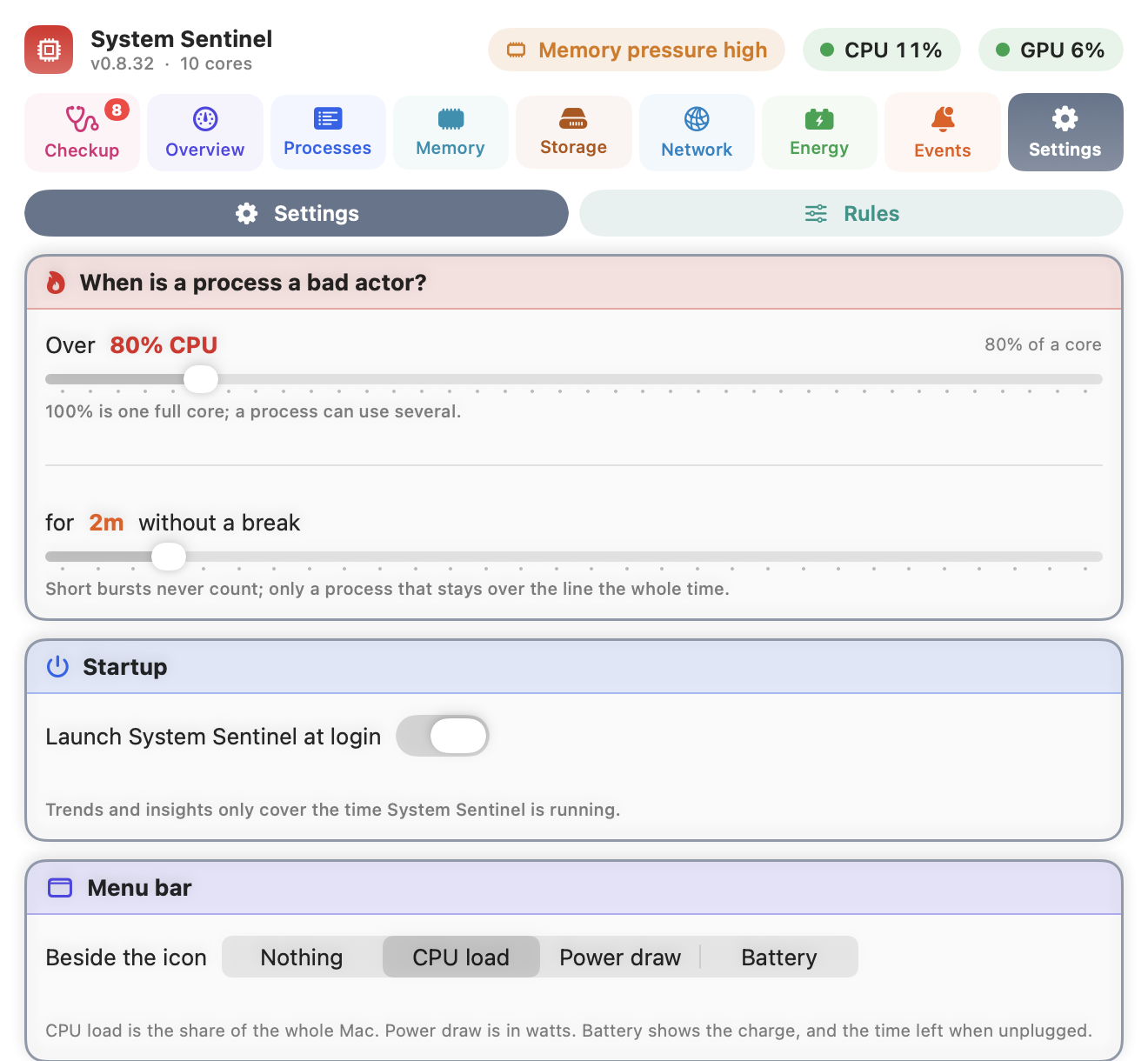
Changes take effect when you click Save; Revert throws them away.
- When is a process a bad actor? Over one core at 80% (8% of a 10 core Mac) for 2 minutes without a break, by default. Builds and short bursts never count.
- Startup: launch at login. Trends only cover the time it runs.
- Menu bar: nothing, CPU load, power draw or battery beside the icon.
- History: keep 7, 14 or 28 days.
- Heat and power alerts, low battery at 20 and 5 minutes left, sleep blockers and the Monday report.
- Diagnostics: Copy diagnostics, Report a problem, Export, and Reset all settings.
- Export (also on Events and Processes): history, events and the process list as CSV for a spreadsheet or JSON, or a full report for IT. Times in UTC.
- A pencil on the Settings tab means changes are waiting for Save.
Rules
The second page of Settings. Set a rule from a notification, or right click a process. Rules follow the program’s path, so they survive restarts; all Chrome tabs share one.
Alert (the default)
A notification with Kill, Ignore for 1 hour, Always ignore and Always auto-kill.
Ignore for 1 hour, or always
Nothing happens.
Ignore during work hours or overnight
Quiet from 9:00 to 17:00, or 22:00 to 07:00, for a build or a backup you expect.
Auto-kill
Killed and you are told. At most 3 times an hour per app; after that you are alerted instead. Never offered for root or core macOS processes.
Auto-kill on battery, or under 30%
Kills only on battery, or only when the battery is low.
Starts by itself, below the rules, lists every launch agent and daemon, whether it is running and its CPU. The bin stops one and moves its file to the Trash (Put Back undoes it). Leave alone anything your company installed, such as VPN, security or device management tools: removing them can cut you off. Login Items opens System Settings.
Staying current.
System Sentinel checks GitHub at launch and every 6 hours, and says so when there is a new version. Update installs it and restarts the app; your settings and history stay. The install line updates too.
Help at the bottom of the window (Cmd ?) opens this page. The first time it opens, a three step welcome shows what it watches, asks for Notifications and Full Disk Access, and shows the ⌃⌥⌘S shortcut. Skip it if you like; right click Help, or use Welcome tour in About, to see it again. About has your version, the release notes, Share with a friend (sends the install line by Messages, Mail, WhatsApp or AirDrop) and Report a problem, which copies the diagnostics and opens a GitHub issue with your version and Mac filled in. The process guide explains the common macOS background processes and whether to stop them.
Your data stays on your Mac.
What it records (processes, power, memory, storage, network quality) is kept in ~/Library/Application Support/SystemSentinel, and your settings in macOS’s preferences. Nothing about you or your Mac is uploaded, and there are no accounts or analytics. To do its job it does reach the internet, though:
Every 3 minutes
A ping and a connection test to 1.1.1.1 (Cloudflare), for link quality.
Every 10 minutes
A DNS lookup of www.apple.com through your Mac’s own DNS, for the DNS doctor.
Every 30 minutes
Opens github.com, npm and PyPI to see who signs their certificates, for HTTPS inspection.
Now and then
captive.apple.com, as macOS does, to spot a Wi-Fi sign-in page.
At launch and every 6 hours
GitHub, to see if there is a new version.
Only when you ask
Map a name… asks Cloudflare and Google DNS and ip.zscaler.com; Speed test and Route test use Apple’s and your chosen servers; Explain opens ChatGPT with the prompt in the address.
Permissions it may ask for
Notifications
For stuck processes, heat and power alerts, low battery and the Monday report. Without it the app still works; you just have to look.
Full Disk Access
Lets Storage measure the Trash, Mail, Messages and other apps’ data, and stops macOS asking about each folder. Without it those folders are left out of the totals.
Automation (control Terminal, Chrome and others)
Asked the first time you use Open sudo shell, or list Chrome’s tabs. Decline and use Copy command instead.
Your admin password
Only when you press a button with a lock: killing a root process, purging memory, Low Power Mode.
Start again, or remove it.
To reset: Settings, Diagnostics, Reset all settings…. Reset settings puts every setting and rule back to the default, keeps your history and reopens the app; Reset and delete history clears the history too. Launch at login and the permissions you gave stay as they are.
To remove it, paste this into Terminal. It quits the app and deletes it, its history and its settings:
pkill -x SystemSentinel
rm -rf "/Applications/System Sentinel.app" "$HOME/Applications/System Sentinel.app"
rm -rf "$HOME/Library/Application Support/SystemSentinel"
defaults delete consulting.cloudscale.systemsentinel
Then, if you like, turn it off in System Settings, General, Login Items, and remove it from Privacy & Security, Full Disk Access and Notifications.
Common questions.
Is it free?
Yes, and the source is on GitHub.
Which Macs does it run on?
macOS 14 Sonoma or later. Power by part (processor, graphics, Neural Engine) needs Apple silicon; everything else works on Intel too.
Does it slow the Mac down?
It uses a few percent of one core, including the commands it runs to measure the network. It shows in Processes like any other app, so you can check.
Will it kill something by itself?
Only an app you gave an Auto-kill rule, at most 3 times an hour. Core macOS and root processes are never killed automatically.
Where do I see what changed in each version?
The release notes on GitHub list every version.
If something is not right.
The menu bar icon is missing
The menu bar may be full: on a MacBook, macOS hides icons behind the notch without saying so. Press Control Option Command S to open the window, then quit a few menu bar apps or hold Cmd and drag icons along.
macOS says the app is damaged or cannot be opened
It is not notarised by Apple, and the install line clears this for you. If you downloaded the zip yourself, run the command below, or try to open it once and click Open Anyway in System Settings, Privacy & Security.
The numbers differ from Activity Monitor
Activity Monitor counts per core, so a process using three cores shows 300% there. System Sentinel shows the share of the whole Mac: 30% on a 10 core Mac.
Trends is empty, or says 0 min recorded
It fills in while System Sentinel runs. The last hour chart needs a few minutes and the daily insights 30 minutes. Hours when it was quit or the Mac slept are left blank, not counted as idle.
Kill did nothing, or the event says Kill failed
The password prompt was cancelled, or the process ignored the polite stop. Use Force kill. If it comes straight back, the banner names what restarted it: stop that instead.
sudo kill does not open Terminal (error -1743)
Allow System Sentinel to control Terminal in System Settings, Privacy & Security, Automation. Or use Copy command and paste it yourself.
Notifications never appear
Allow them in System Settings, Notifications, System Sentinel.
Storage says some folders are hidden by macOS
Give it Full Disk Access with Open settings on that card, then turn System Sentinel on in the list.
It says it quit unexpectedly last time
macOS saved a crash report. Click Report a problem (in About, or Settings, Diagnostics): it copies the diagnostics and opens a GitHub issue with your version and Mac filled in. Paste the diagnostics into it.
To clear the download quarantine flag by hand:
xattr -dr com.apple.quarantine "/Applications/System Sentinel.app"
Still stuck?
Open an issue on GitHub with what you saw and the text from Settings, Diagnostics, Copy diagnostics. The source is there too, if you want to check what it does.