Every Claude Code session, one window.
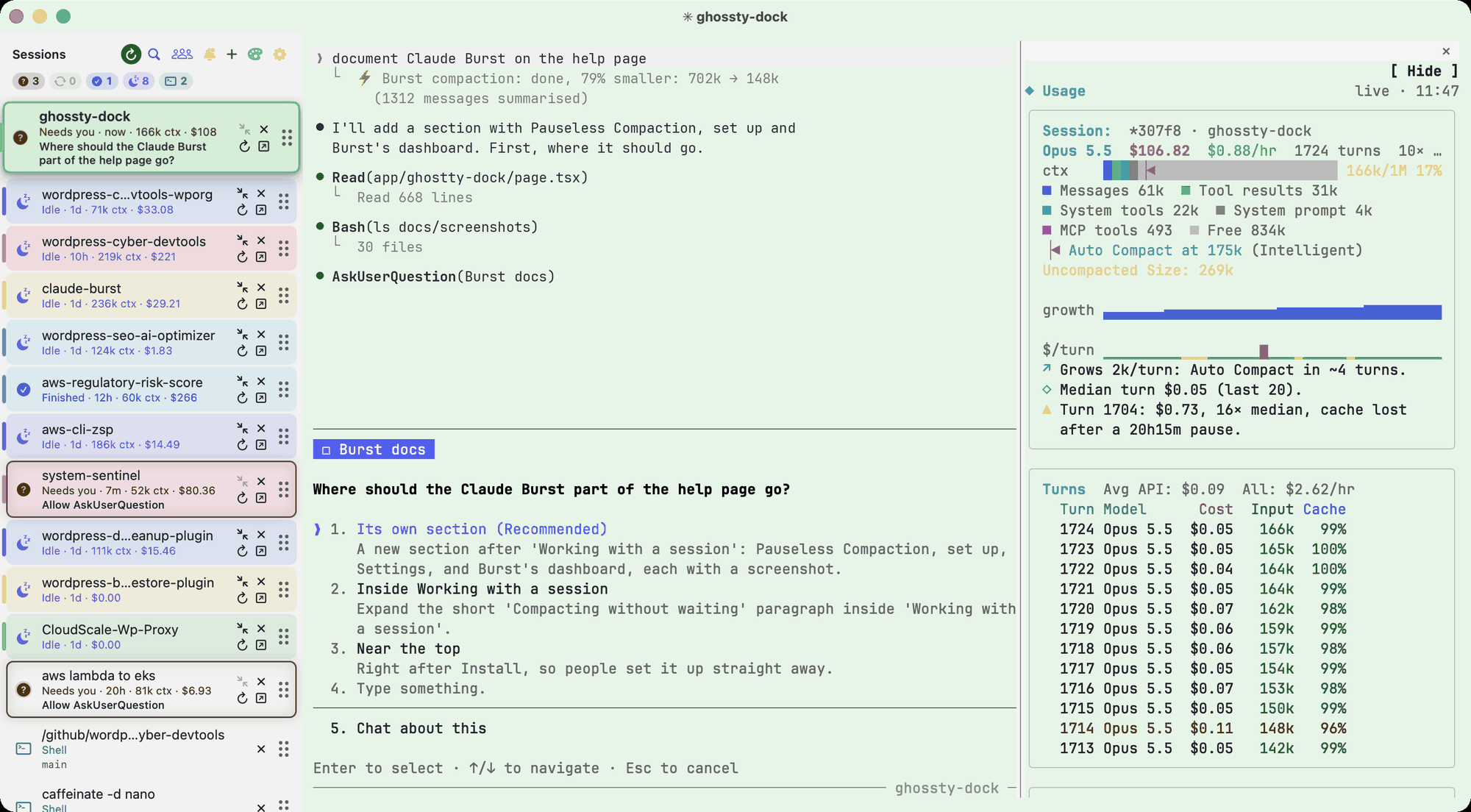
Ghostty Dock is the Ghostty terminal with a sidebar down the left, like vertical tabs in a browser. Each Claude Code session is a row, coloured by whether it needs you, is running or has finished, with its context size and what it has cost so far. You stop hunting through tabs for the one that is waiting on a question.
- Installinstall
- Your first sessionstart
- The sidebarsidebar
- Header buttonsheader
- Working with a sessionsessions
- Claude Burstburst
- Keyboard shortcutsshortcuts
- Agents and spendagents
- Settingssettings
- Updates and sharingupdates
- Scriptingscripting
- Questionsfaq
- Problemsproblems
Before and after.
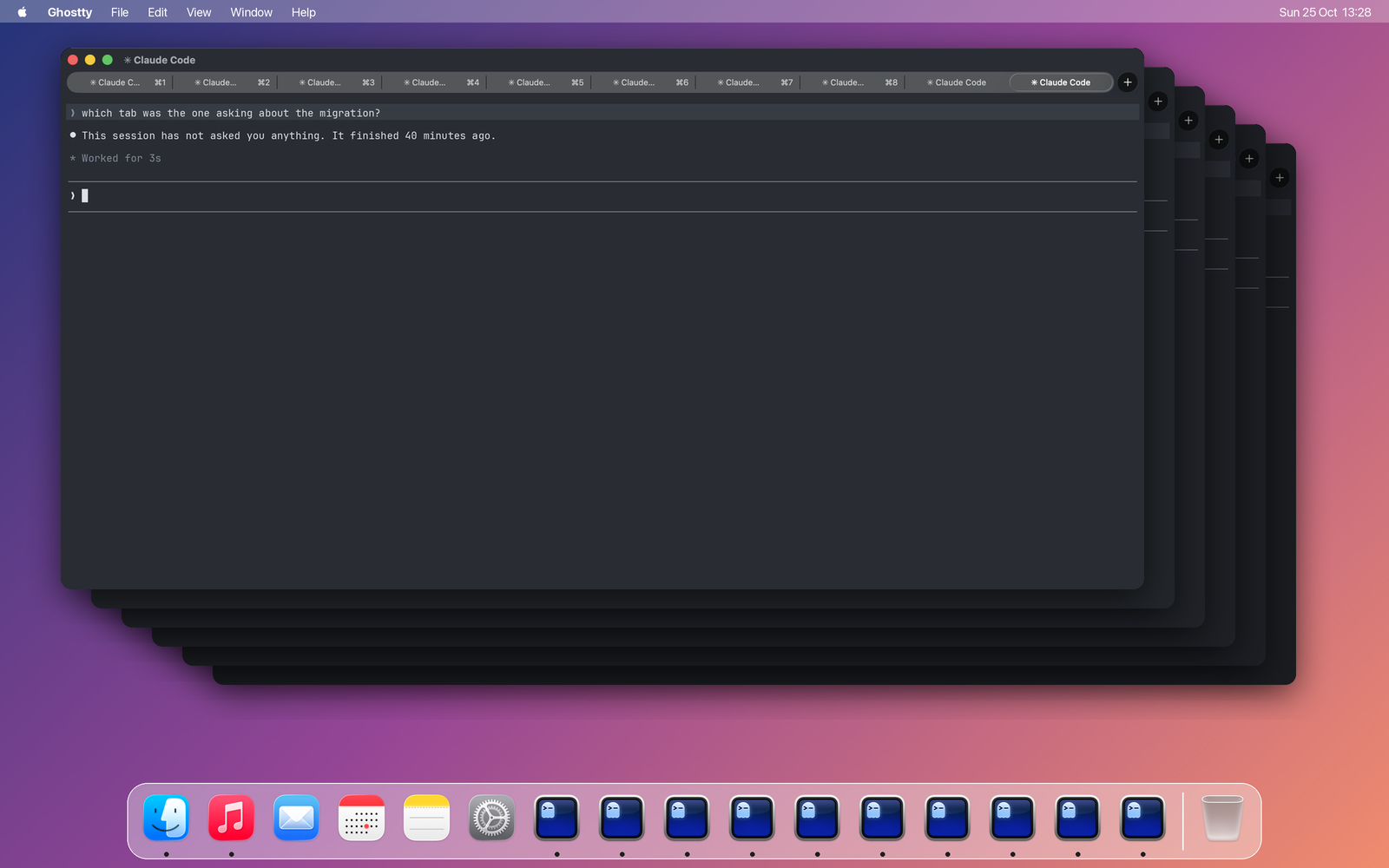
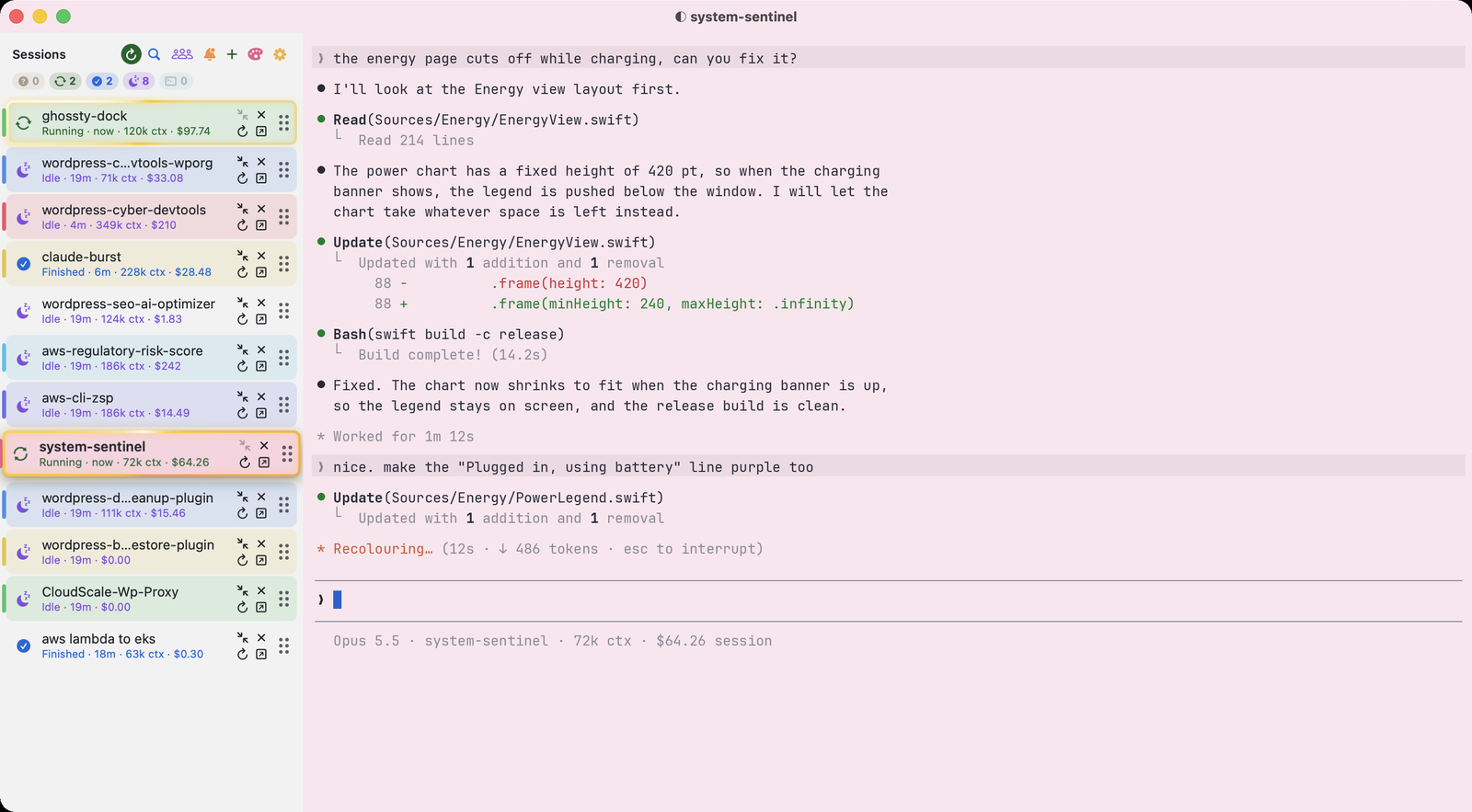
Ten Claude Code sessions in plain Ghostty are ten tabs that all say Claude Code. You cannot tell which one is working, which one has finished and which one has been waiting on you for twenty minutes. In Ghostty Dock each one is a named row with its state, its colour and what it has cost.
One line, nothing to build.
You need a Mac with Apple silicon (M1 or newer), macOS 13 or later and Claude Code.
- 1Open Terminal: press Cmd Space, type Terminal, press Return.
- 2Paste this line and press Return:
curl -fsSL https://raw.githubusercontent.com/andrewbakercloudscale/ghossty-dock/main/get.sh | bash
- 3Ghostty Dock opens by itself. From then on it is in your Applications folder (~/Applications) and in Launchpad, like any other app. Drag it to the Dock to keep it there.
The installer downloads the latest release, installs the app and the small Claude Code hook that tells the sidebar what each session is doing, then opens it. macOS does not ask before opening it.
- No Claude Code yet? Install it first:
curl -fsSL https://claude.ai/install.sh | bash
- macOS 13 or 14: run brew install jq first. macOS 15 and later include it.
- To remove it:
bash ~/.local/share/ghostty-dock/install.sh --uninstall && rm -rf ~/.local/share/ghostty-dock
Open a tab, start Claude.
- 1Press Cmd T or the + at the top of the sidebar. A new tab opens and a teal Shell row appears.
- 2Go to your project and start Claude Code, for example cd ~/code/my-app && claude.
- 3The row takes the project’s name and turns green while Claude works, peach when it asks you something and blue when it is done.
- 4Open a tab for each project. When one needs you, press Cmd Shift J (or Ctrl Opt J from any app) to jump straight to it.
Sessions already running in another terminal keep running there. To bring one in, end it and run claude --resume in a Ghostty Dock tab; the conversation carries on where it was. When Ghostty Dock restarts or updates, every session that was open comes back as a tab by itself.
What the colours mean.
Needs you (peach question mark)
Claude asked a question or wants permission for a tool. The row says what it is waiting on, for example "Allow Bash: npm test", and a peach ring glows round it.
Running (green arrows)
Claude is working. A gold glint runs round the row and its border beats like a heart every two seconds.
Finished (blue tick)
The turn is done and you have not looked at it yet.
Idle (mauve moon)
At its prompt, and you have seen it. A turn you stop with Esc also shows Idle within a few seconds.
Shell (teal)
A plain terminal tab with no Claude Code running in it.
Undocked (grey, dashed)
A Claude Code session running in its own Ghostty window. Click it to show that window.
Reading a row
Name
The project folder, or the name you gave it (right click, Rename).
Status line
State, how long it has been in it, context size and cost, for example "Running · 3m · 154k ctx · $23.14".
ctx
The tokens its last reply read. Near 150k to 200k a session is close to compacting.
$
What the session has cost so far, its subagents included.
Branch line
Under the status: branch, commits not pushed, files changed, the open pull request and ports in use, such as "main ↑2 ●3 · #42 · :3000".
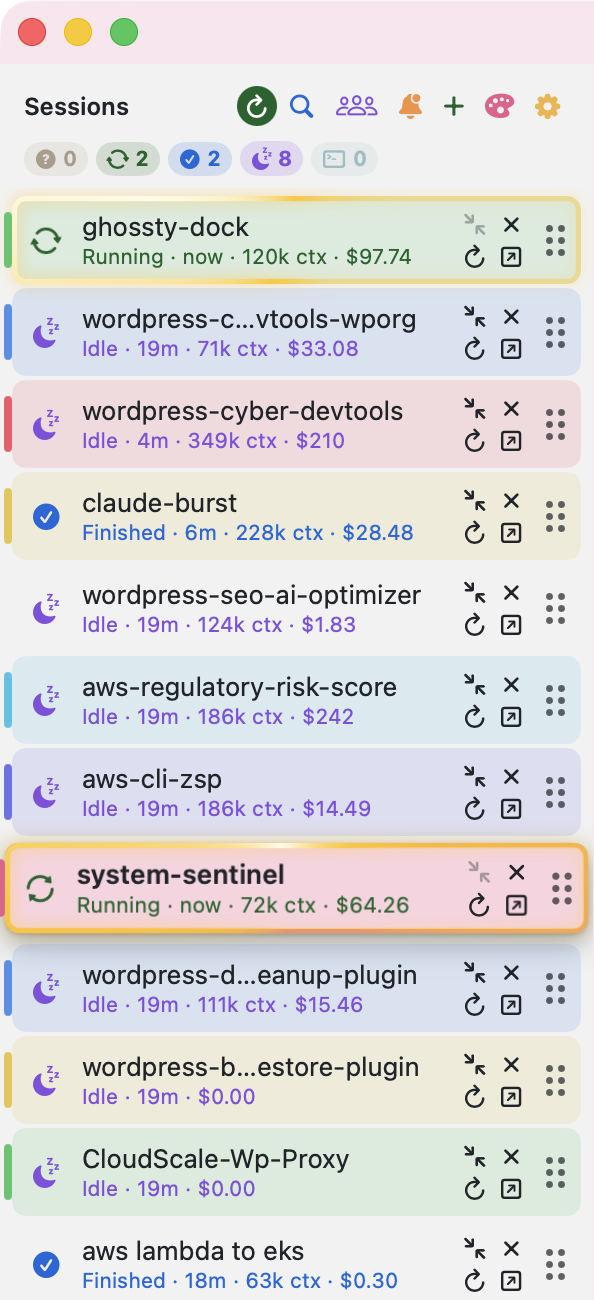
Drag the sidebar’s right edge to make it wider or narrower; double click the edge to reset it. Cmd Shift S hides it.
Along the top of the sidebar.

Point at a button and the line under it says what it does.
Restart (circular arrow)
Restarts Ghostty Dock once your sessions are quiet; they come back as tabs. It turns into a filled green circle when a newer build is installed.
Search (magnifier)
Find a session by name, folder or question, closed ones too (Cmd P).
Agents (people)
Subagents, tokens and spend across every session (Cmd Shift A). Turns green with a count while agents run.
Bell
Recent notifications, newest first; click one to go to its session. Mark All Read and Clear are at the top, the gear sets what it keeps (see below).
Plus
A new tab (Cmd T).
Palette
Give the selected session one of 30 colours: 20 round the colour wheel and 10 vivid ones for rows that must stand out.
Gear
Settings (Cmd comma). Turns green and flashes when an update is ready; click it for About and Update.
Counters (second line)
How many sessions are in each state. Click one to show only those; click it again to show all.
The buttons on each row.
Click the row
Go to that session.
Compact (arrows pointing in)
Compacts the session in the background with Claude Burst while it sits at its prompt, so you never wait for it. Greyed out while it runs.
Restart (circular arrow)
Stops claude and resumes the same session in a fresh tab (Cmd Shift R).
Close (cross)
Closes the tab. Cmd Shift T brings it back.
Undock (arrow out of a box)
Moves the session to its own Ghostty window (Cmd Shift U). Its Dock icon in the sidebar brings it back.
Grip (six dots)
Drag to put rows in your own order. The sort becomes As you drag them.
Right click
Rename, Pin to the top, Move Up or Down, Colourise (pick from the list, or Colour… for the swatch grid), Compact, Restart, Undock, open its pull request or port, or Close.
Colours and groups
Give a session a colour with the palette button or right click, Colourise. Its row is tinted and its terminal takes a little of the colour too, so you can tell at a glance which session you are typing in. Colours, names and pins stay with the session across restarts. Settings, Sidebar, Groups folds rows under their folder or their colour. Thirty colours: twenty round the colour wheel and ten vivid ones (Scarlet, Blaze, Gold, Volt, Neon, Aqua, Electric, Ultra, Fuchsia, Flamingo) for the rows that have to stand out.
The bell
The bell keeps a list of notifications, with a red count of the unread ones. Click one to go to its session. Mark All Read clears the count, Clear empties the list, and the gear opens Settings, Bell, where you choose:
- whether the bell shows in the sidebar at all
- how many to keep: the last 50, 100, 200 or 500
- what goes in it: a session needs you, a session finishes, a script sends one
- whether going to a session marks its notifications read
The bell is separate from macOS notifications, which are set in Settings, Notifications.
Compacting without waiting
The Compact button needs Claude Burst. See Claude Burst below.
Compact without the pause.
Claude Burst is a free local gateway for Claude Code, from the same author. Ghostty Dock works without it. With it, sessions never stop to compact, each repository compacts at the size that costs least, and sessions working in the same repository stop treading on each other.
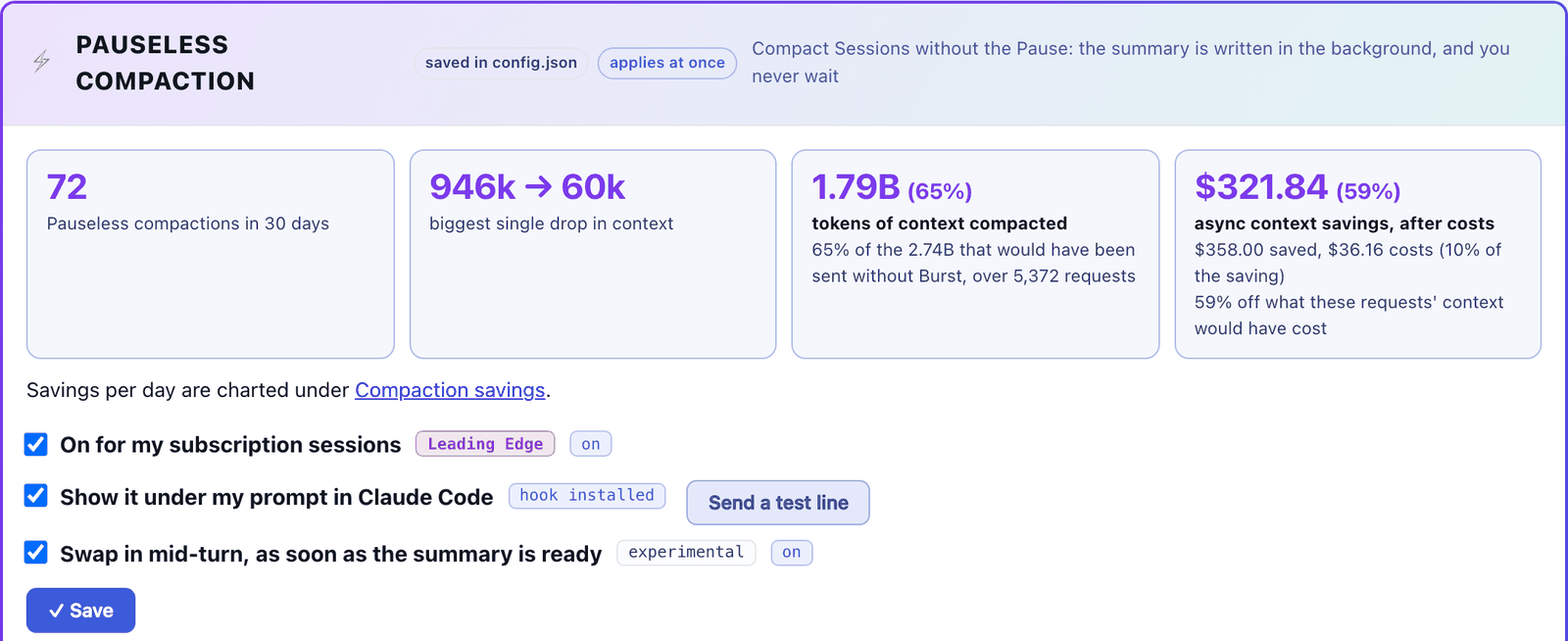
Pauseless Compaction
The Compact button on a row, or right click, Compact (Pauseless), has Burst summarise the session in the background while you keep working. The summary swaps in with your next prompt, a line under the prompt says how much smaller the context got, and the row’s ctx figure drops with it. The button is greyed out while the session is busy.
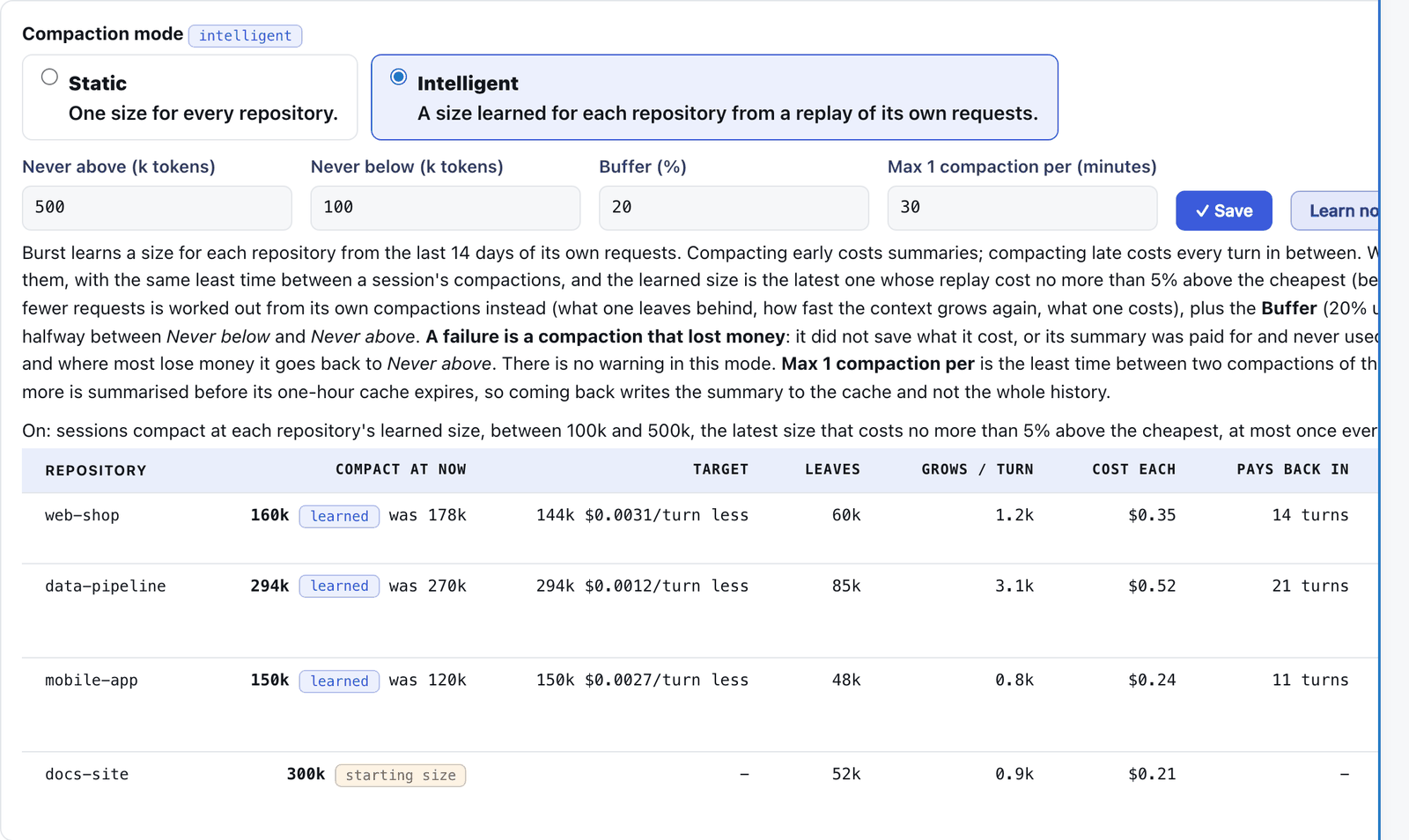
Intelligent compaction
Burst can also compact on its own, at a size it learns for each repository from what compactions saved there over the last 14 days.
Session coordination
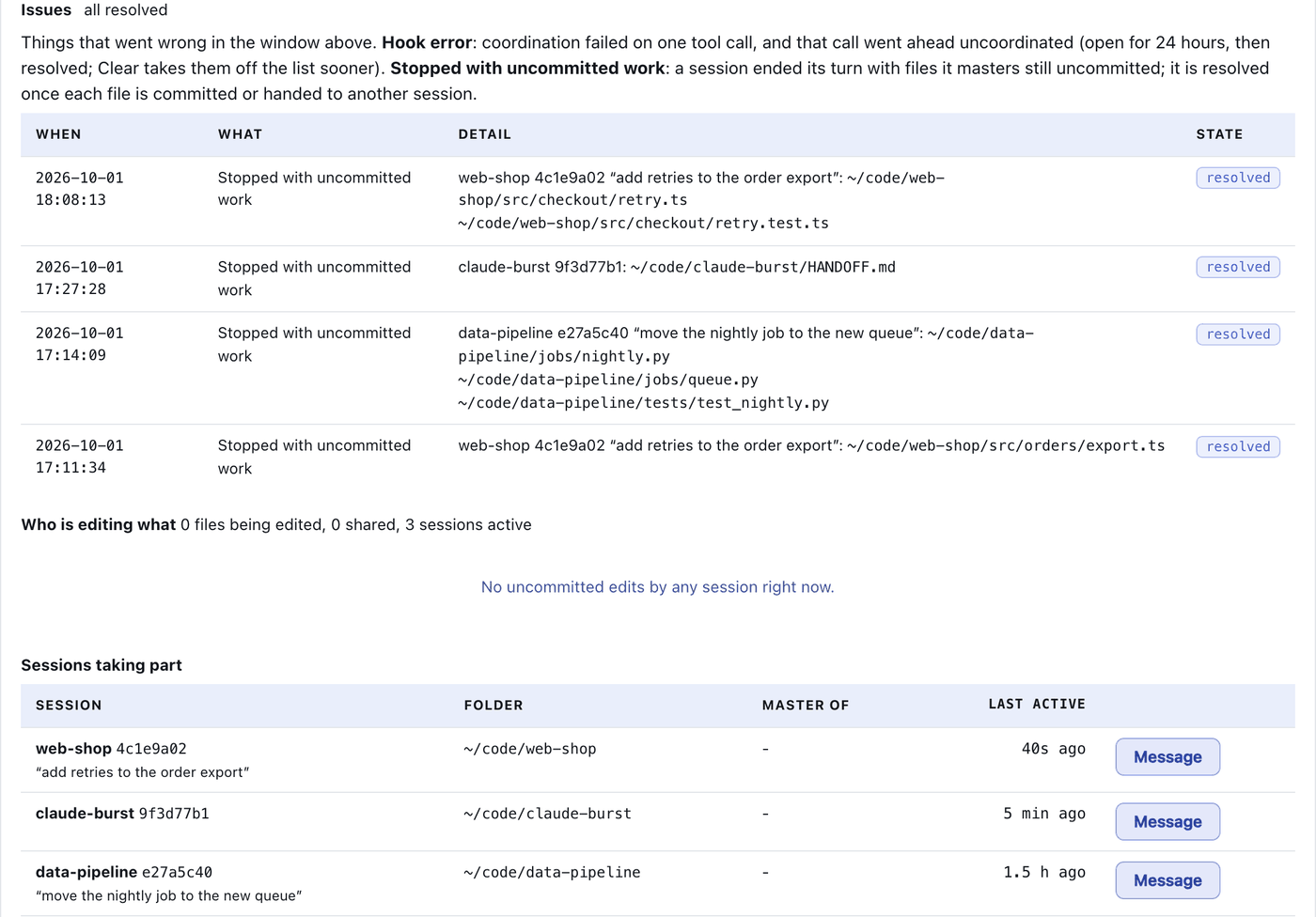
When several sessions in the sidebar work in the same repository, the first to edit a file owns it and commits it. Others can still edit it, but cannot sweep it into their own commit or overwrite it whole.
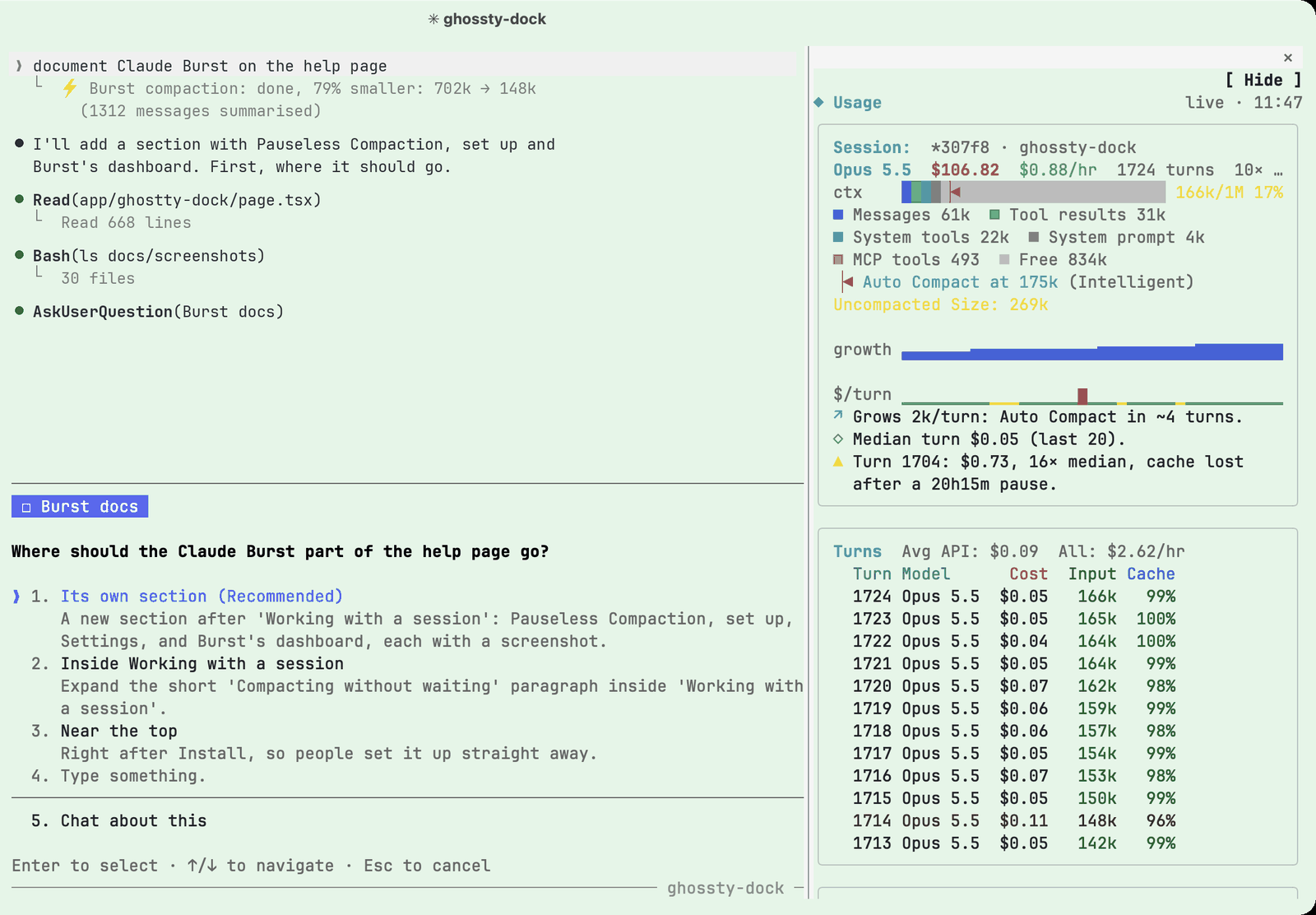
Setting it up
- 1Click the Compact button (arrows pointing in) on any row. Without Burst it offers Set Up Claude Burst, which opens a tab running Burst’s one line setup. Claude Code says what will change and waits for your go ahead.
- 2Or paste the setup line into any tab:
claude "$(curl -fsSL https://raw.githubusercontent.com/andrewbakercloudscale/claude-burst/main/SETUP_PROMPT.md)"
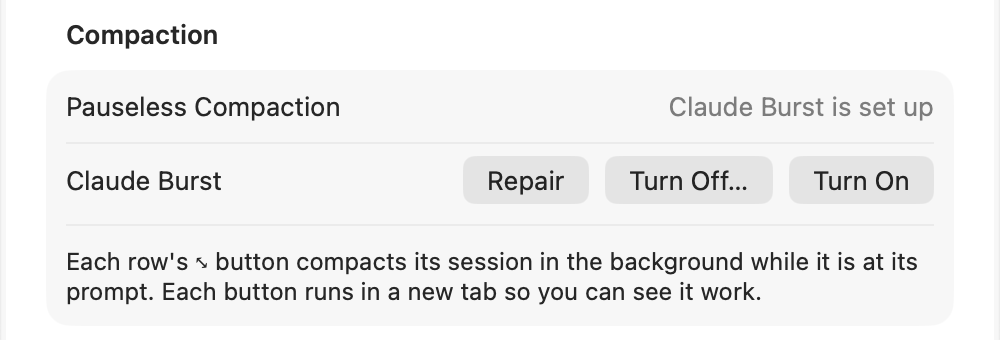
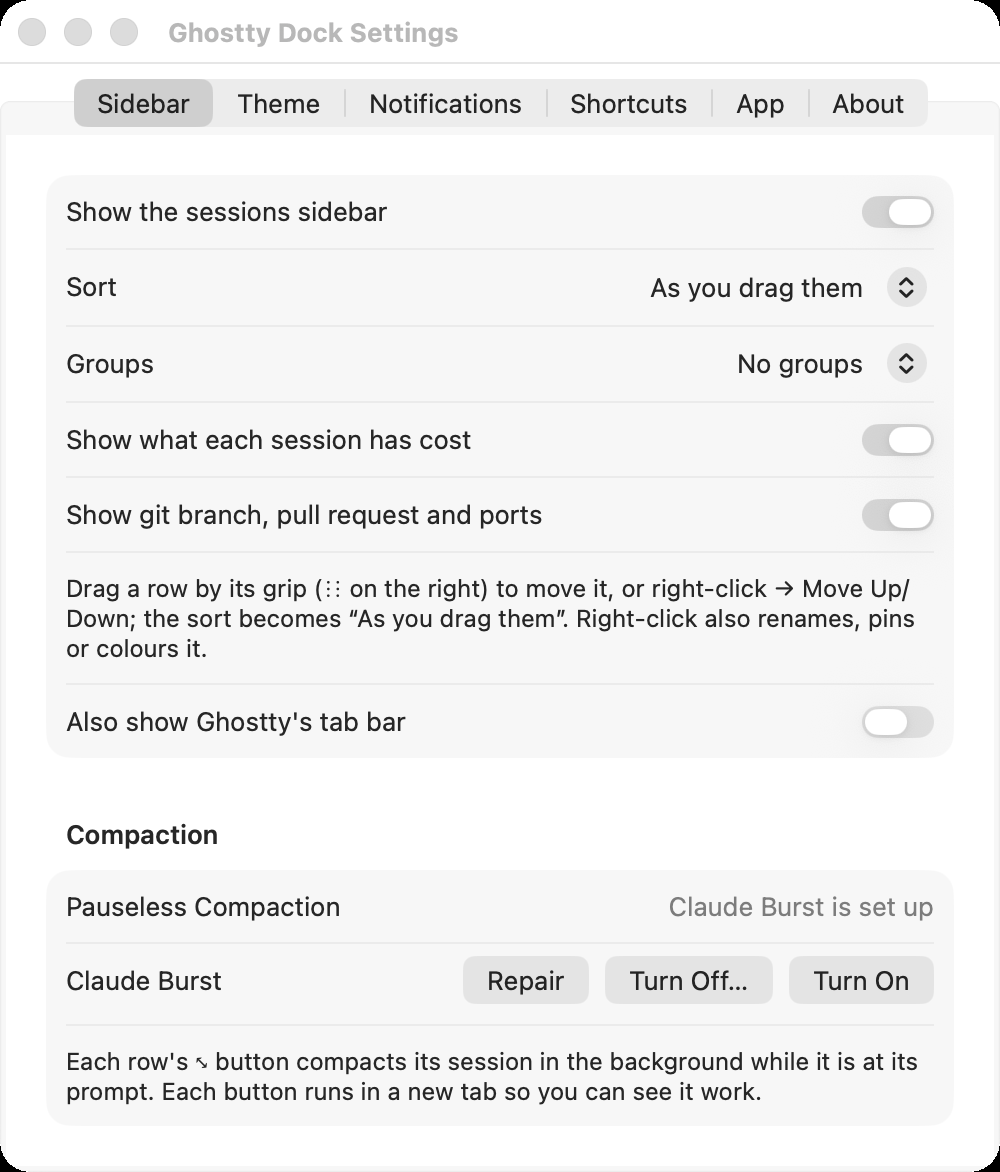
- 3Settings, Sidebar, Compaction then says Claude Burst is set up, with Repair, Turn Off and Turn On. Each runs in a new tab so you can watch it.
Burst’s dashboard
Burst has its own app: press Cmd Space, type burst, press Return. These are the parts that matter most alongside Ghostty Dock. (Screenshots use example data.)
Keys worth learning.
- Cmd 1 to Cmd 8, Cmd 9Go to that session in the sidebar, or the last one
- Ctrl Tab, Ctrl Shift TabNext or previous session, in the sidebar’s order (also Cmd Shift ] and [)
- Cmd Shift JNext session that needs you, then finished ones
- Ctrl Opt JThe same, from any app
- Cmd PFind a session by name, folder or question
- Cmd Shift AAgents across all sessions
- Cmd Shift TReopen the last closed session
- Cmd Shift RRestart this session
- Cmd Shift UUndock this session to its own window
- Cmd Shift SShow or hide the sidebar
- Cmd commaSettings
- Cmd ?This help page
Cmd 1 to 9 and next or previous follow the sidebar’s order while it shows. Everything else (Cmd T, Cmd W, splits) works as in Ghostty. Settings, Shortcuts lists them too.
What your sessions are spending.
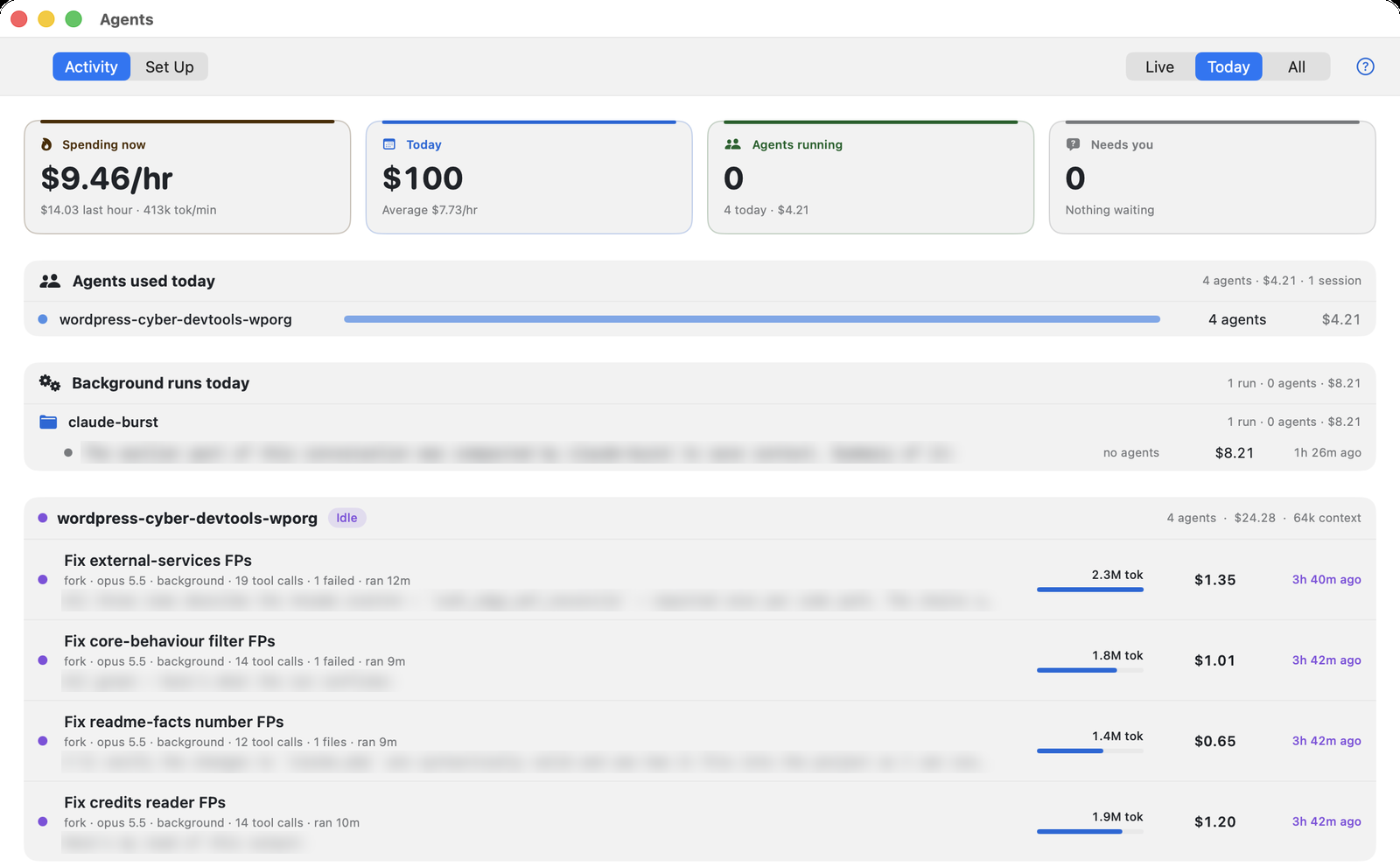
Press Cmd Shift A or the people button. Activity shows four tiles (spending now, today, agents running, sessions that need you), which sessions used agents today and what they cost, background runs with no tab, then every subagent your sessions started: what it is doing, its model, tool calls, tokens and cost. Live, Today and All switch the time range; click a row to go to its session.
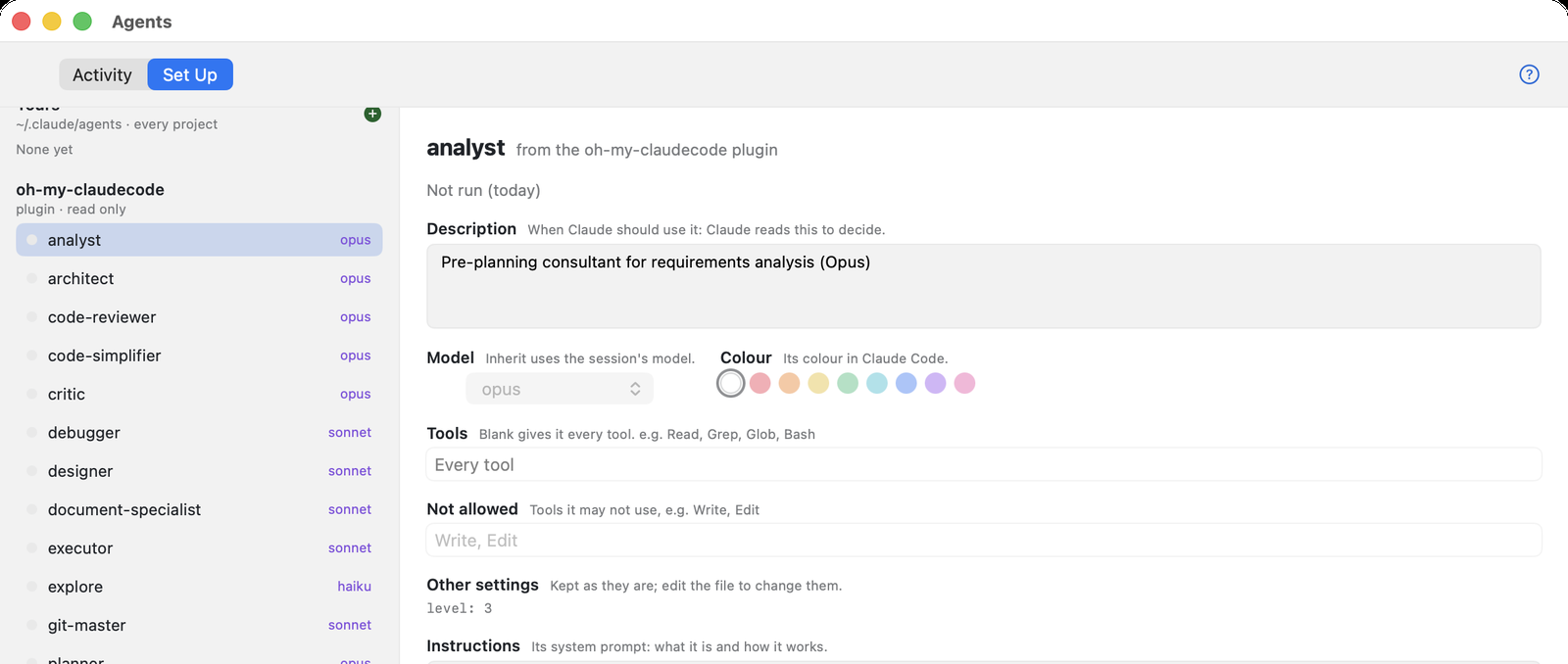
Set Up lists every agent Claude Code can start: yours, each project’s, the plugins’ and the built in ones, with how often each ran. Yours can be edited here (description, model, colour, tools and instructions); a plugin’s can be duplicated as yours to change it (Duplicate as Mine). The green plus beside a group makes a new agent there: type a name and Create. Revert undoes unsaved changes, Open in Editor and Show in Finder open its file, and Move to Trash deletes it. The question mark explains how to ask Claude for agents. In Activity, right click an agent for Copy Agent ID or Show Worktree in Finder.
Cmd comma, or the gear.
Seven tabs. The defaults suit most people; these are the ones worth knowing.
Sidebar
Sort: Alphabetical (rows never move), Needs you first, Running first, Tab order or As you drag them. Groups folds rows by folder or colour. Cost and the branch line can be turned off. Compaction sets up, repairs or turns off Claude Burst.
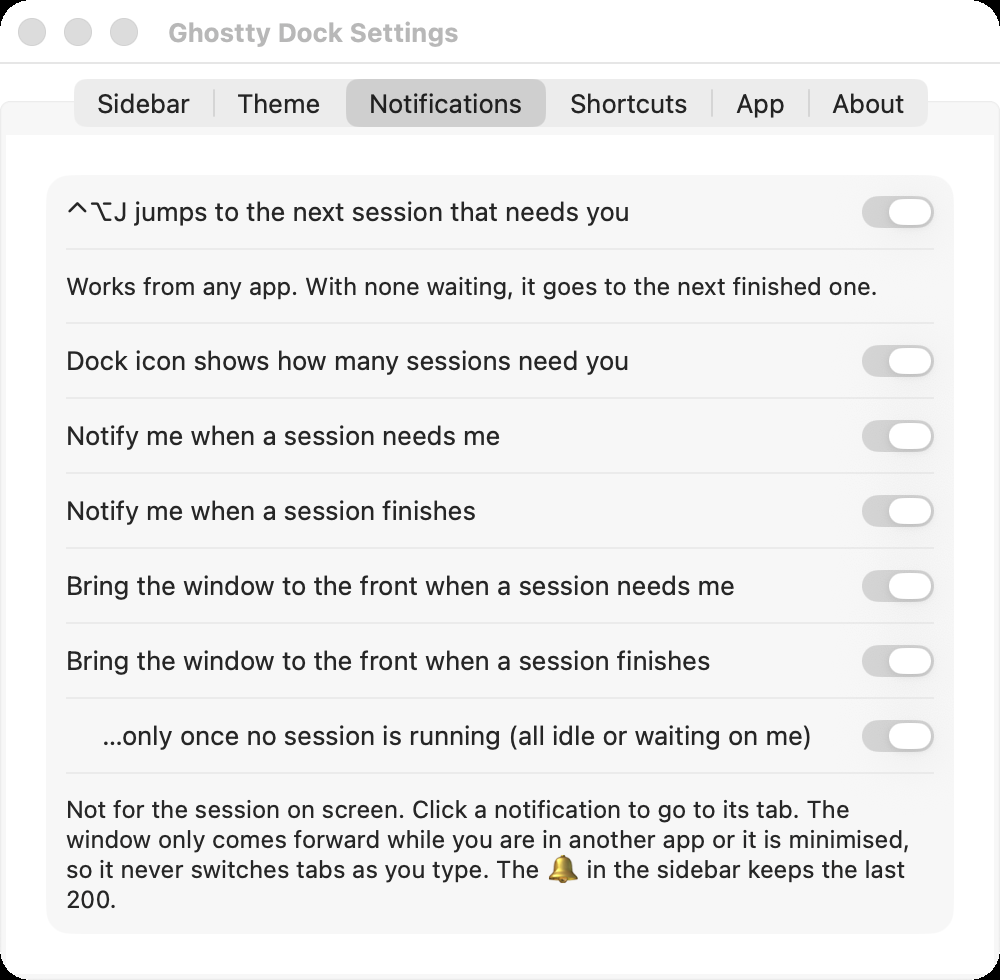
Notifications
The Ctrl Opt J hotkey, the Dock badge, macOS notifications when a session needs you or finishes, and whether the window should come to the front for them. It only comes forward while you are in another app, and waits until you stop typing, so it never switches tabs under you.
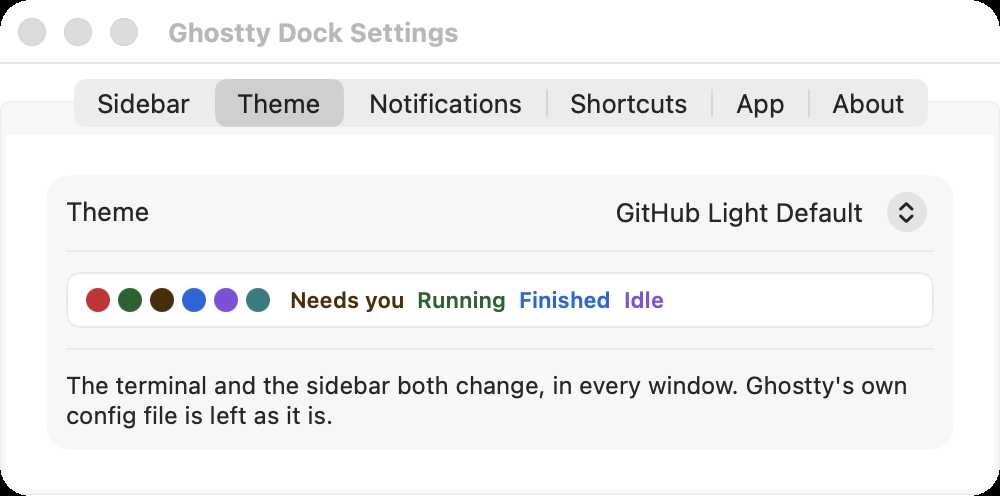
Theme
Twenty themes (Catppuccin, TokyoNight, Dracula, Nord, Gruvbox, GitHub and more). The terminal and the sidebar change together. Your Ghostty config file is not touched.
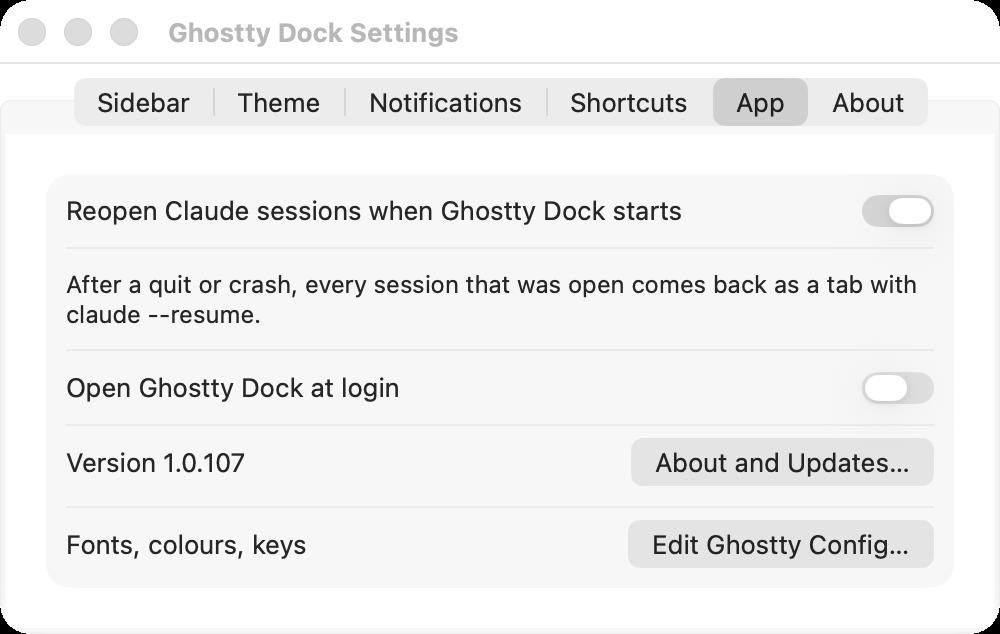
App
Reopen Claude sessions when Ghostty Dock starts brings every open session back after a quit, crash or update. Open at login, and Edit Ghostty Config for fonts and keys.
Staying current.
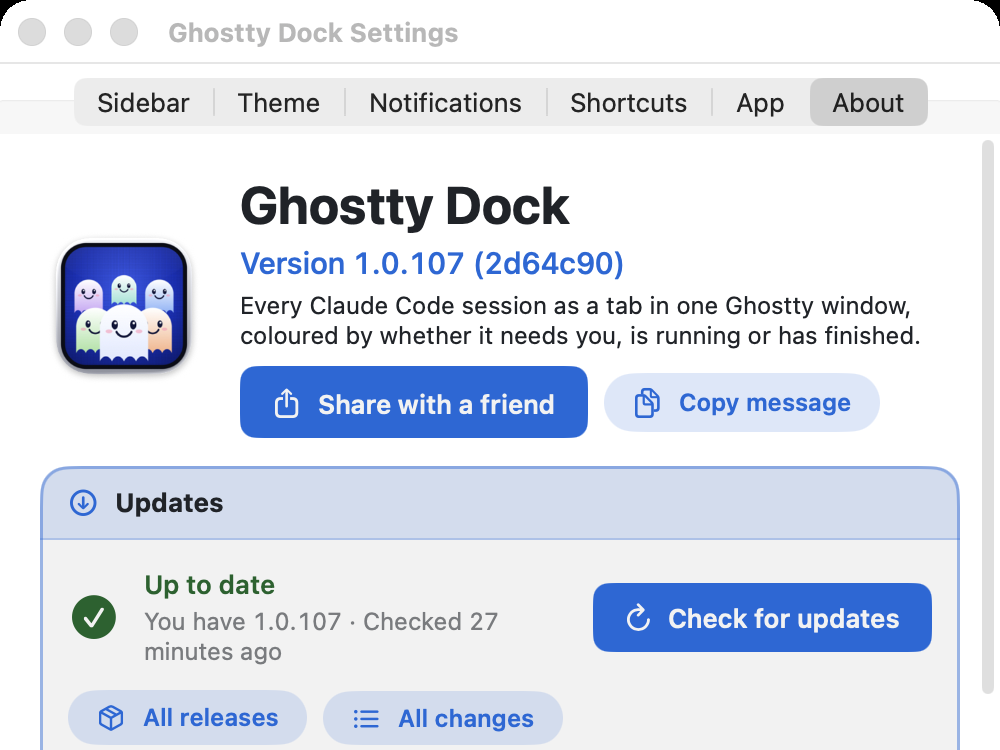
Ghostty Dock checks GitHub a few seconds after it opens and every 6 hours. When there is a new version the gear turns green and flashes. Click it, then Update: it installs the new version and restarts once your sessions are quiet. They come back as tabs.
The About tab (also Help, About Ghostty Dock) shows your version and has Share with a friend, which sends the install line by Messages, WhatsApp, Mail or AirDrop. Copy message puts it on the clipboard instead.
Help, Ghostty Dock Help (Cmd ?) opens this page. What changed in each version is in the release notes on GitHub.
Drive it from a script.
The ghostty-dock command talks to the running app, for scripts and other agents. Name a session by its name in the sidebar, its folder, its session id or the start of its name.
ghostty-dock list
Every session: status, name, branch, ports, cost and id.
ghostty-dock focus aws-cli
Go to its tab.
ghostty-dock send aws-cli "run the tests" --enter
Type into it.
ghostty-dock read aws-cli --lines 20
What is on its screen.
ghostty-dock wait aws-cli 'passed|failed' --timeout 600
Wait until its screen matches.
ghostty-dock notify "Deploy done" "prod is on 1.4.2"
A notification from a script.
ghostty-dock open ~/code/repo --command claude
A new tab in that folder.
Common questions.
Does it change my normal Ghostty?
No. Ghostty Dock is a separate app with its own name and settings. It reads the same Ghostty config file for fonts and keys, and only its Theme setting overrides colours, inside Ghostty Dock.
Can I run Ghostty and Ghostty Dock side by side?
Yes. Sessions in plain Ghostty keep working; they just do not appear in the sidebar.
Does it run on an Intel Mac?
No. It is built for Apple silicon (M1 and later) only.
What about more than one window?
The sidebar lists the tabs of every Ghostty Dock window. Undock moves one session to a window of its own; its row stays in the sidebar to bring it back.
Where do I see what changed in each version?
The release notes on GitHub list every version.
If something is not right.
A session never shows Needs you or Running
The state comes from a Claude Code hook the installer adds to ~/.claude/settings.json. Sessions started before the install need a restart: click the row’s Restart button. If it still stays Shell, run the install line again; it puts the hook back.
A row says Running but the session stopped
Update to the latest version. A turn stopped with Esc shows Idle within a few seconds.
Sessions did not come back after a restart
Settings, App, Reopen Claude sessions when Ghostty Dock starts must be on. The sidebar offers Reopen for any that did not start, and sessions already open elsewhere are skipped so none runs twice. The log is ~/.local/state/ghostty-dock/restart-dock.log.
I quit Ghostty Dock and my sessions ended
Quitting ends what runs in it, like any terminal. Use the Restart button instead: it waits until sessions are quiet and brings them back as tabs.
Restart says it waits for a session to finish, and never does
Update to 1.0.113 or later: a turn that ended on an error or Esc now counts as finished. Or click the Restart button again and choose Restart Now, which does not wait (Cancel Restart stops it).
The window jumps to the front by itself
That is Bring the window to the front, for a session that needs you or finishes. Turn it off in Settings, Notifications. If you only just switched away (within 3 seconds) it plays a sound instead of jumping.
A session I started in another terminal is not in the sidebar
The sidebar lists sessions running in Ghostty Dock tabs. Quit it there, open a tab here and run claude --resume to pick it up.
Update does nothing
The log is ~/.local/state/ghostty-dock/update.log. Running the install line again also updates.
Something else
Open Console.app and search for ghosttydock, then open an issue on GitHub with the text from Settings, About, Copy details.
Fonts, colours and keys are Ghostty’s.
Ghostty Dock is built on Ghostty 1.3.1, so everything about the terminal itself (its config file, themes, fonts and key bindings) is in Ghostty’s own documentation. Settings, App, Edit Ghostty Config opens the file.